> For the complete documentation index, see [llms.txt](https://docs.acecloud.ai/knowledge-base/llms.txt). Markdown versions of documentation pages are available by appending `.md` to page URLs; this page is available as [Markdown](https://docs.acecloud.ai/knowledge-base/account/how-do-i-sign-up-for-ace-public-cloud.md).
# How do I sign up for Ace Public Cloud?
Ace Public Cloud is a reliable and affordable cloud computing platform that offers a wide range of services, including compute, storage, networking, databases, and more. This article explains the step-by-step process of signing up for **Ace Public Cloud** and completing the **KYC verification**. The steps vary depending on whether you are signing up **from India** or **outside India**.
### **Create Your Account**
**Step 1:** Go to [**AceCloud**](https://customer.acecloudhosting.com/) Portal and click **Sign Up**.
**Step 2:** Fill in the required details:
* First Name, Last Name
* Phone Number (Verify via OTP)
* Email Address
* Password & Confirm Password
**Step 3:** Click **Sign Up**.
***Note:** You will now be redirected to the **AceCloud Dashboard**.*
**Step 4:** Click **Complete KYC** to proceed.
**Step 5:** Select your **Country**.
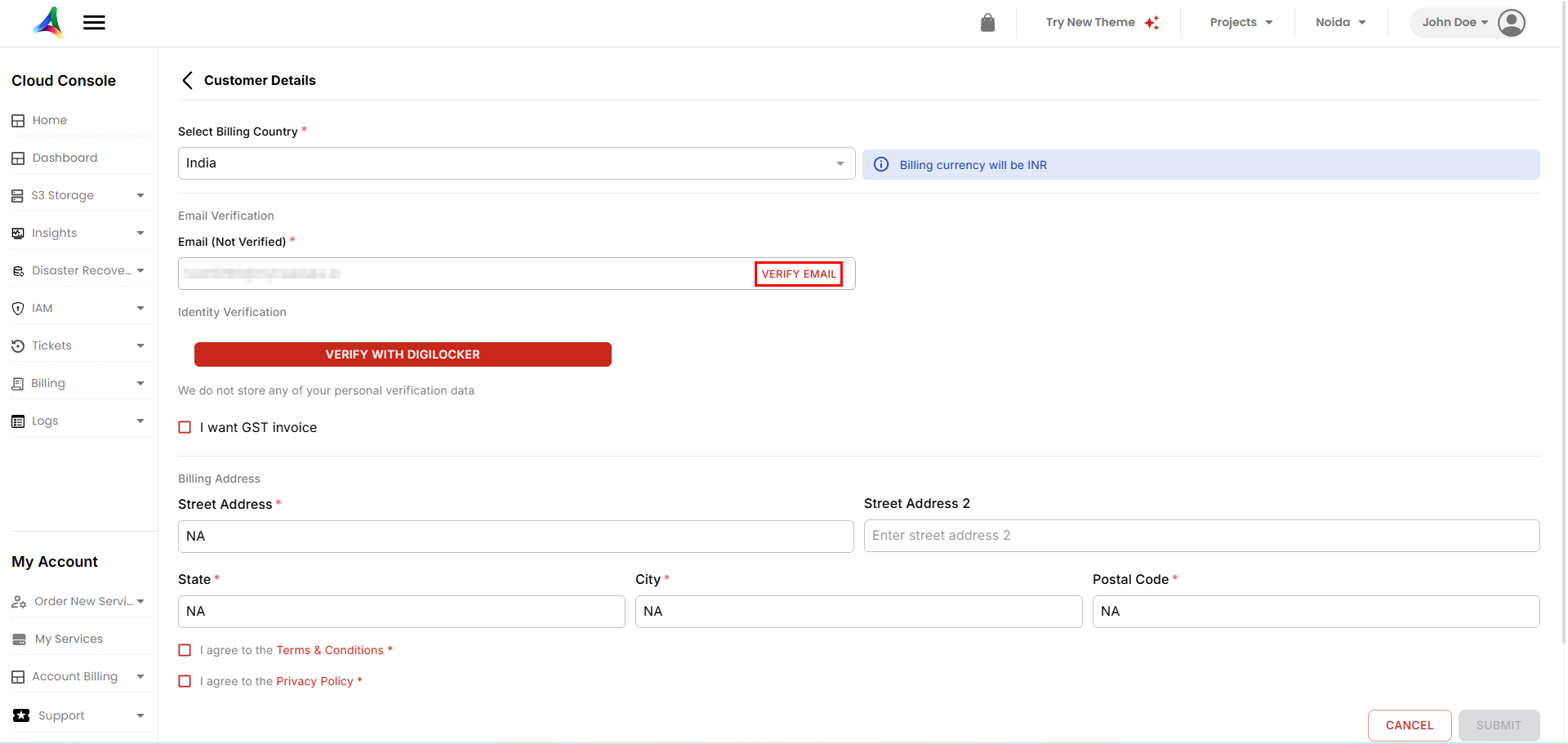
### **a.** KYC Process for Users in India
**Step 1:** Click the **Verify Email** button.
**Step 2:** Click **Verify with Digilocker**.
**Step 3:** A new window will open. Click **Start Verification**.
**Step 4:** Enter your **Aadhaar Number**.
**Step 5:** Enter the **OTP** sent to your Aadhaar-linked mobile number and click **Submit**.
**Step 6:** Allow sharing of your Aadhaar document.
***Note:** Your identity will be verified if the details are correct.*
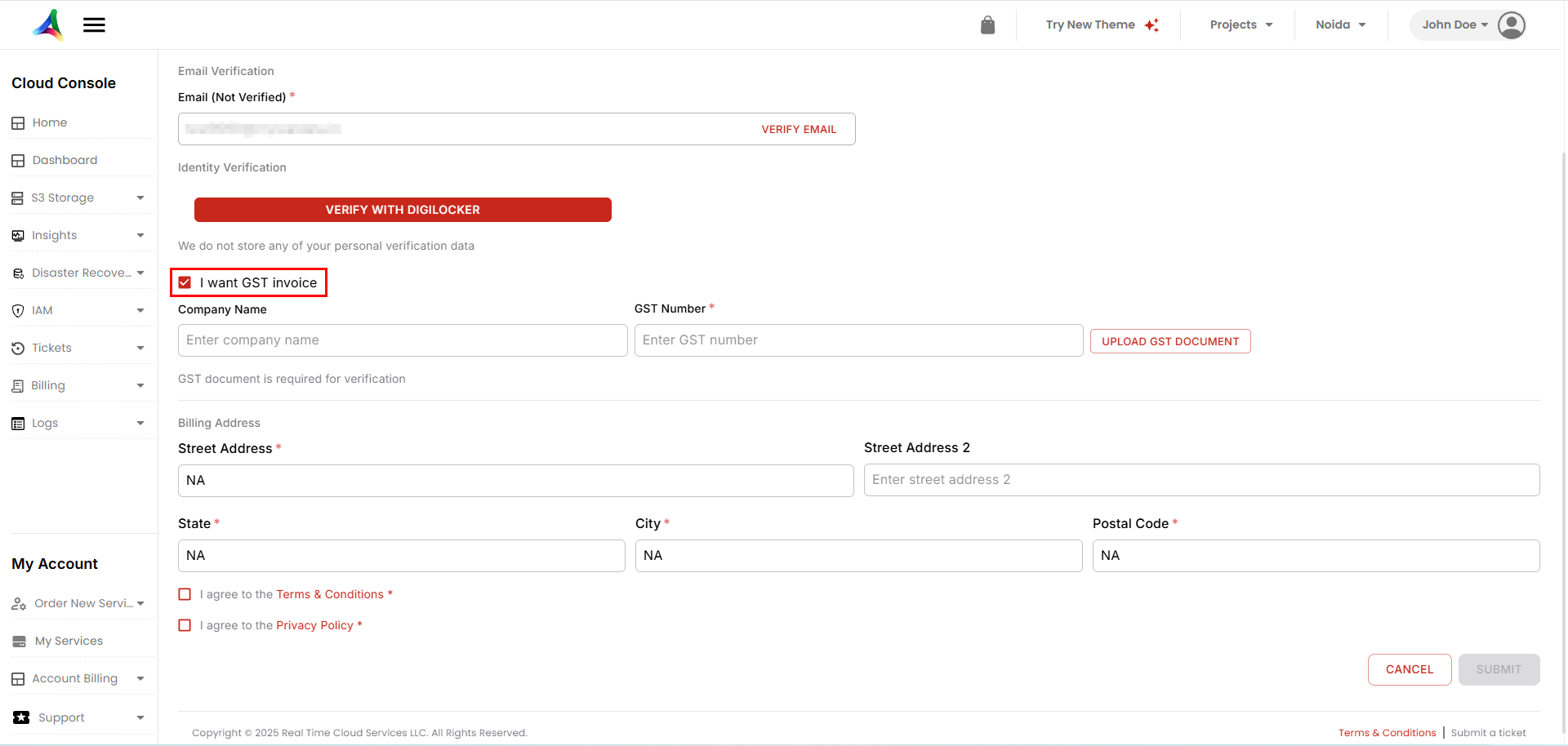
**Step 7: Optional GST Details**:
* Check the box **I want GST Invoice**.
* Enter **Company Name**, **GST Number**, and upload the **GST Document**.
*Note*: If GST details are verified, your account will be treated as a **Company**; otherwise, as an **Individual**.
**Step 8: Billing Address** will be auto-filled from Aadhaar.
**Step 9:** Accept the **Terms & Conditions** and **Privacy Policy**, then click **Submit**.
***Note:** Once details are correct, your KYC will be completed. You can now order projects and other services.*
### **b.** KYC Process for Users Outside India
**Step 1:** Click the **Verify Email** button.
**Step 2:** Click **Click here to Verify your Identity**.
**Step 3:** Select your region:
* **United States of America**
* **All other countries**
**Step 4:** Choose whether to continue verification on the same device or scan the **QR Code** to continue on your phone.
**Step 5:** Select your **Country**.
Choose a document type: **Driving License, ID Card, or Passport**.
**Step 6:** Upload document photos.
***Note:** Your identity will be verified if the details are correct.*
**Step 7: Optional Company Details**:
* Enter **Company Name** and **VAT Number**.
*Note*: If these details are entered correctly, your account will be treated as a **Company**; otherwise, as an **Individual**.
**Step 8:** Enter your **Billing Address**.
**Step 9:** Accept the **Terms & Conditions** and **Privacy Policy**, then click **Submit**.
***Note:** Once details are correct, your KYC will be completed. You can now order projects and other services.*
*For any assistance, please feel free to reach out to the Ace Public Cloud support team via* [*email*](mailto:support@acecloudhosting.com)*. To explore more about Ace Public Cloud and its offerings, visit our* [*official website*](https://acecloud.ai/)*.*