> For the complete documentation index, see [llms.txt](https://docs.acecloud.ai/knowledge-base/llms.txt). Markdown versions of documentation pages are available by appending `.md` to page URLs; this page is available as [Markdown](https://docs.acecloud.ai/knowledge-base/account/how-to-set-up-and-enable-two-factor-authentication-2fa-on-ace-public-cloud.md).
# How to set up and enable Two-factor authentication (2FA) on Ace Public Cloud?
Learn how to set up and enable two-factor authentication (2FA) on Ace Public Cloud.
**Step 1:** [Login](https://customer.acecloudhosting.com/index.php?rp=/login) into your account.
**Step 2:** Navigate to the **Profile** section and select **Security Settings.**
**Step 3:** Select the **Two-Factor Authentication** tab.
**Step 4:** Hit **Click here to Enable**.
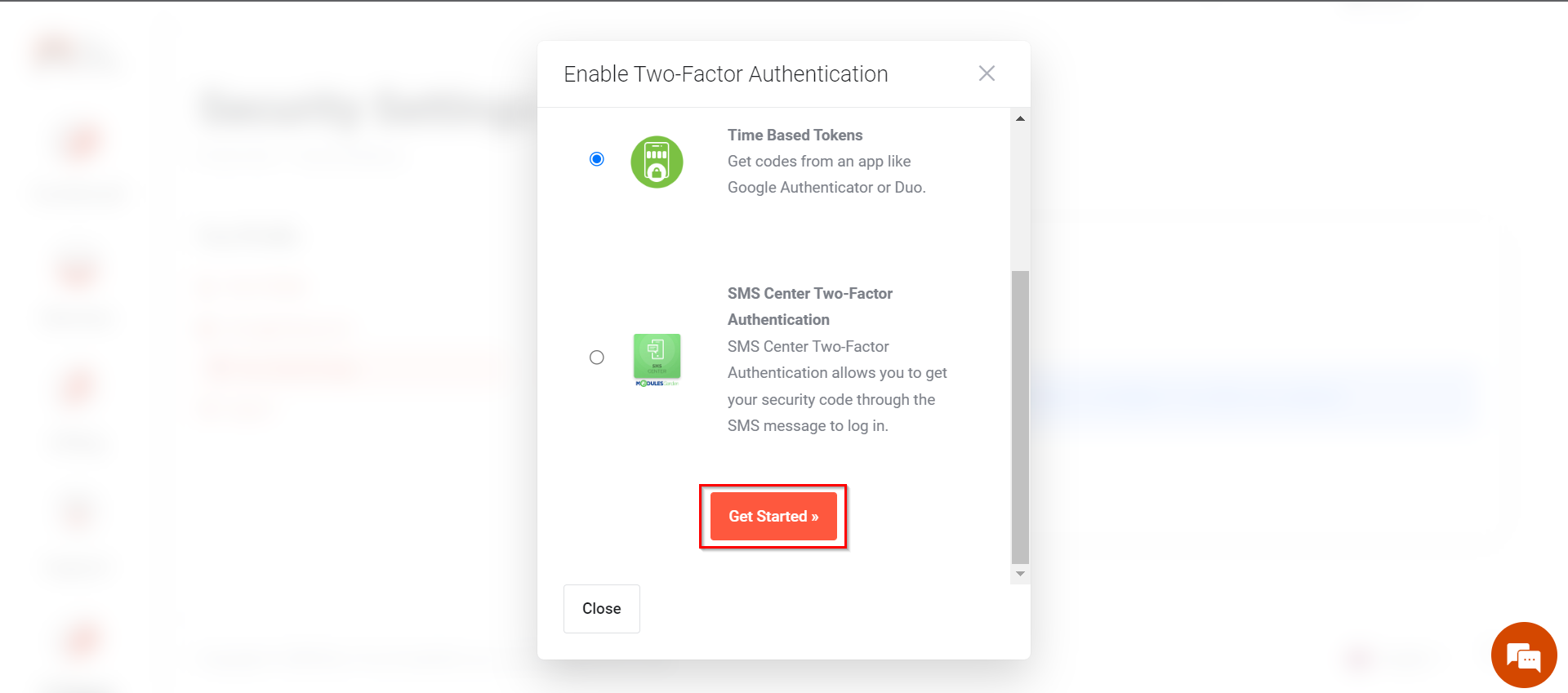
**Step 5:** You can set 2FA using two methods, **Time Based Tokens** and **SMS Center Two-Factor Authentication**. Select your desired method and click on **Get Started**.
**A.** If you choose **Time Based Tokens,** you have to download an authenticator application like [Google Authenticator](https://apps.apple.com/gb/app/google-authenticator/id388497605) or [Duo](https://apps.apple.com/gb/app/duo-mobile/id422663827).
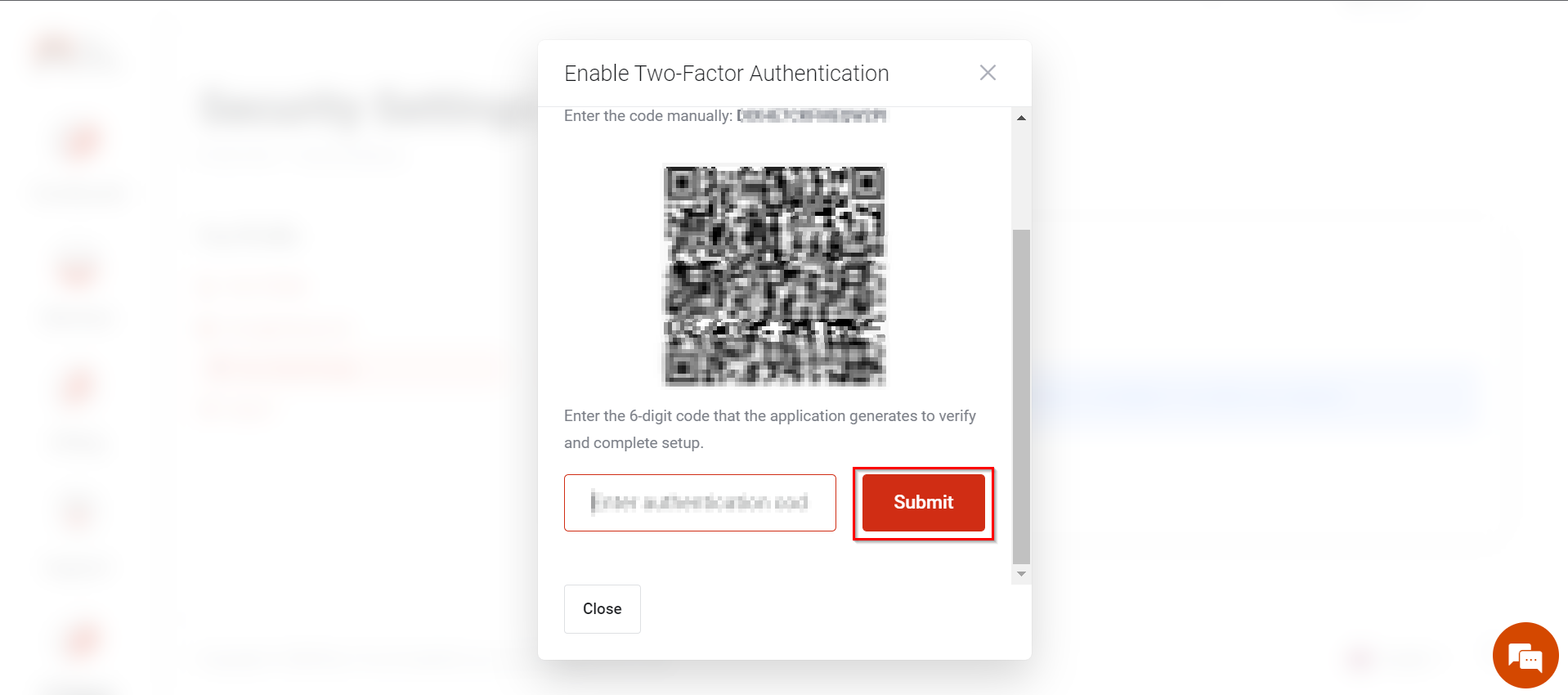
After downloading the app, scan the QR code or enter the code manually in the application.
After scanning, it generates a security code, enter it, and hit **Submit** button.
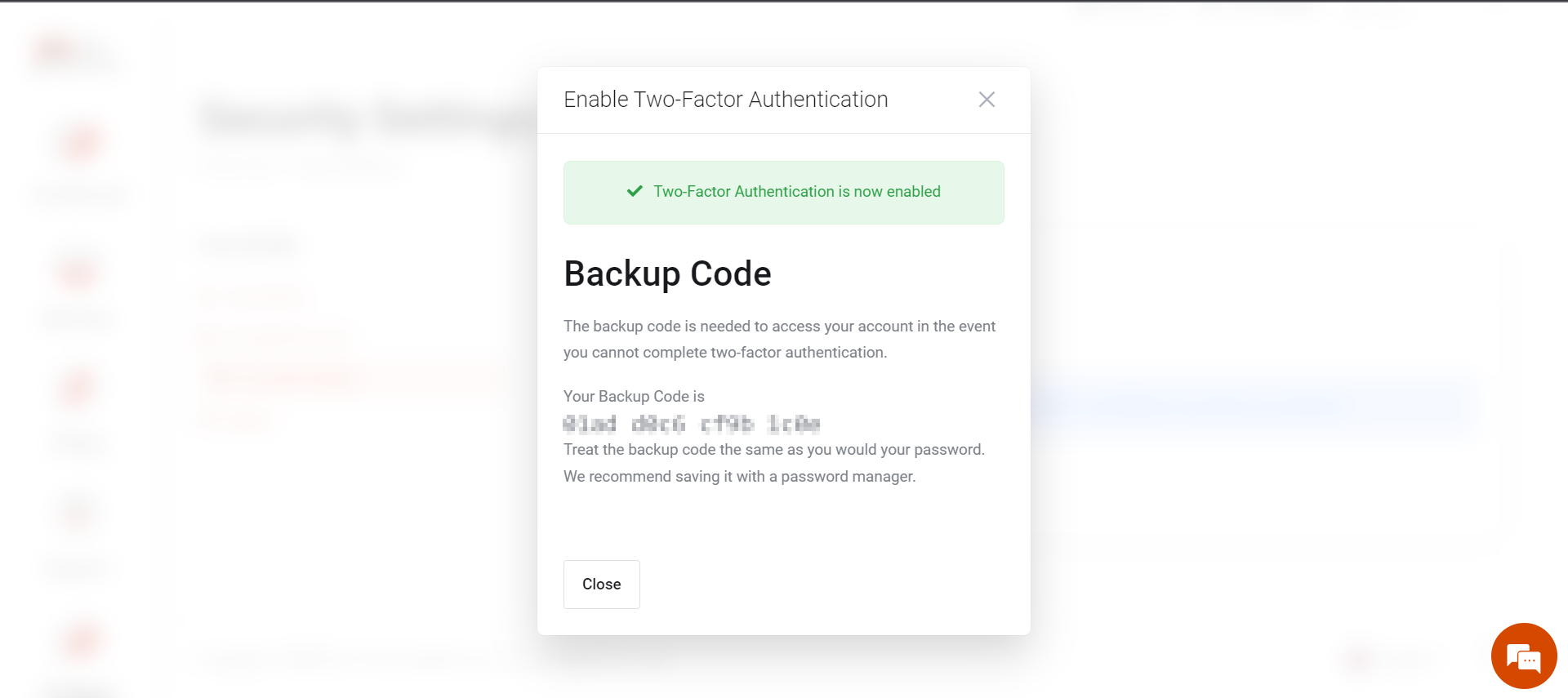
Now if you enter the correct security key, your 2FA will enable successfully, and a Backup code will generate, which will be needed in the event when [you cannot complete 2FA](https://customer.acecloudhosting.com/index.php?rp=/knowledgebase/26/I-am-unable-to-login-using-Two-Factor-Authentication-2FA-what-should-I-do-now.html).
{% hint style="info" %}
**Note:** Time-based Token every time generates a new security code, enter it whenever you are login into your account.
{% endhint %}
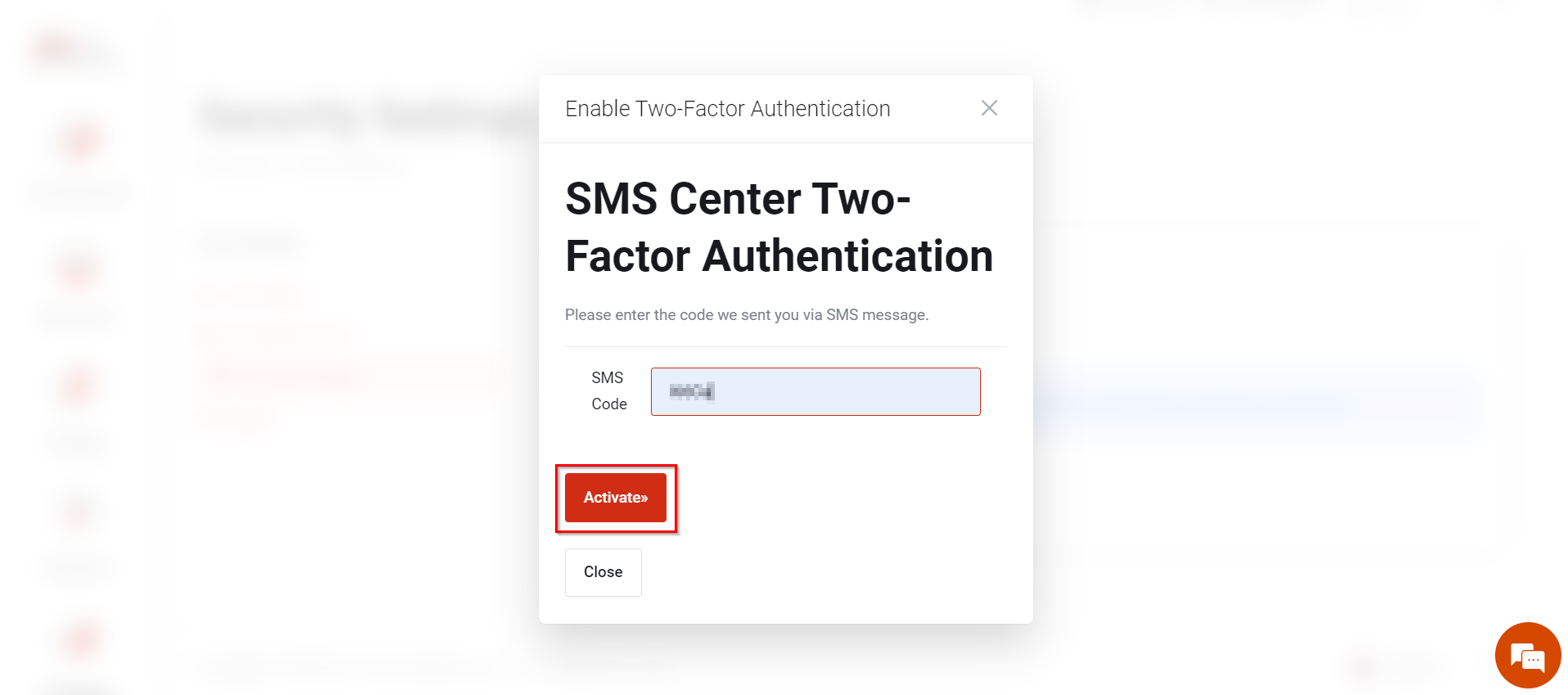
**B.** If you choose **SMS Center Two-Factor Authentication**, then you have to enter your mobile number to receive the security key on the text message and click on **Activate**.
Enter the code received on your mobile and hit **Activate**.
On entering the correct security key, your 2FA will enable successfully, and a Backup code will generate, which will be needed in the event when [you cannot complete 2FA](https://customer.acecloudhosting.com/index.php?rp=/knowledgebase/26/I-am-unable-to-login-using-Two-Factor-Authentication-2FA-what-should-I-do-now.html).


 On entering the correct security key, your 2FA will enable successfully, and a Backup code will generate, which will be needed in the event when [you cannot complete 2FA](https://customer.acecloudhosting.com/index.php?rp=/knowledgebase/26/I-am-unable-to-login-using-Two-Factor-Authentication-2FA-what-should-I-do-now.html).
