> For the complete documentation index, see [llms.txt](https://docs.acecloud.ai/knowledge-base/llms.txt). Markdown versions of documentation pages are available by appending `.md` to page URLs; this page is available as [Markdown](https://docs.acecloud.ai/knowledge-base/kubernetes/how-to-delete-a-volume.md).
# How to Delete a Volume?
To delete a volume, follow the steps given below:
**Step 1:** [Login](https://customer.acecloudhosting.com/index.php?m=ace_product_register_addon\&action=login) to your account.
**Step 2:** Navigate to **Services** and then click on **My Services.**
**Step 3:** Click on your project.
**Step 4:** Navigate to **Kubernetes** and then click on **K8s Volumes**.
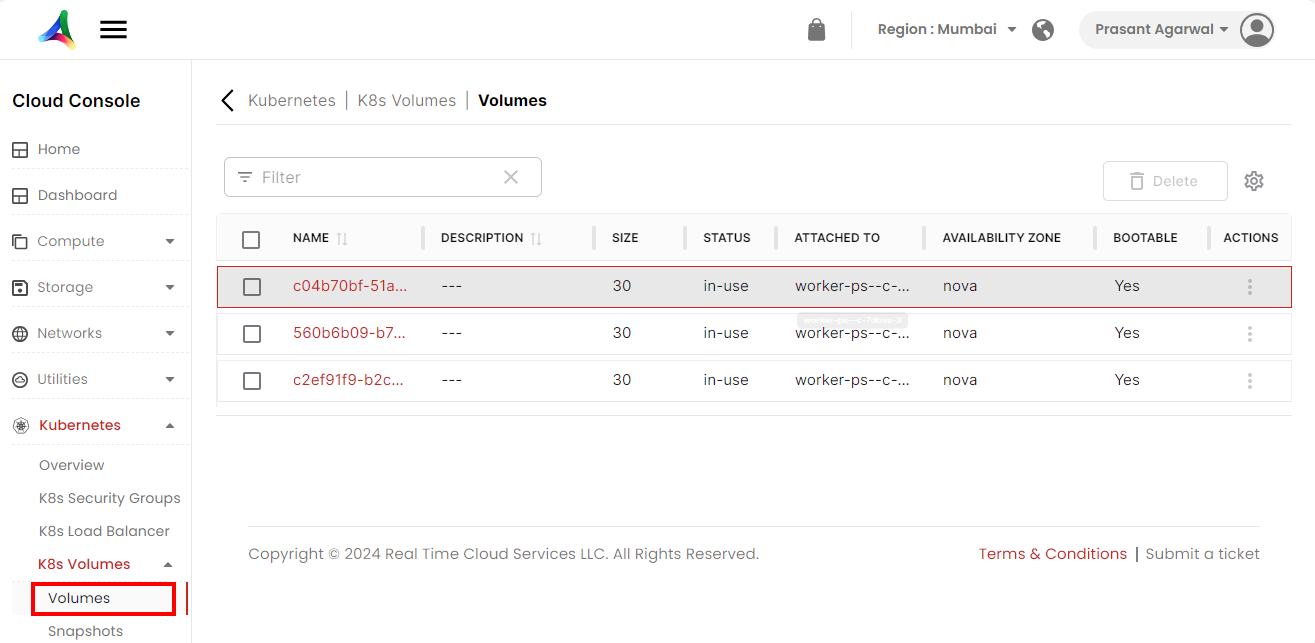
**Step 5:** Click on **Volumes.**
**Step 6:** Click on three dots corresponding to the volume that you want to delete.
**Step 7:** Click on **Delete.**
**Step 8:** Click on **Confirm** to delete the volume.