# How to create a network load balancer?

**To create a Network Load Balancer, follow the steps below:**

**Step 1:** [Login](https://customer.acecloudhosting.com/index.php?m=ace_product_register_addon\&action=login) to your account.

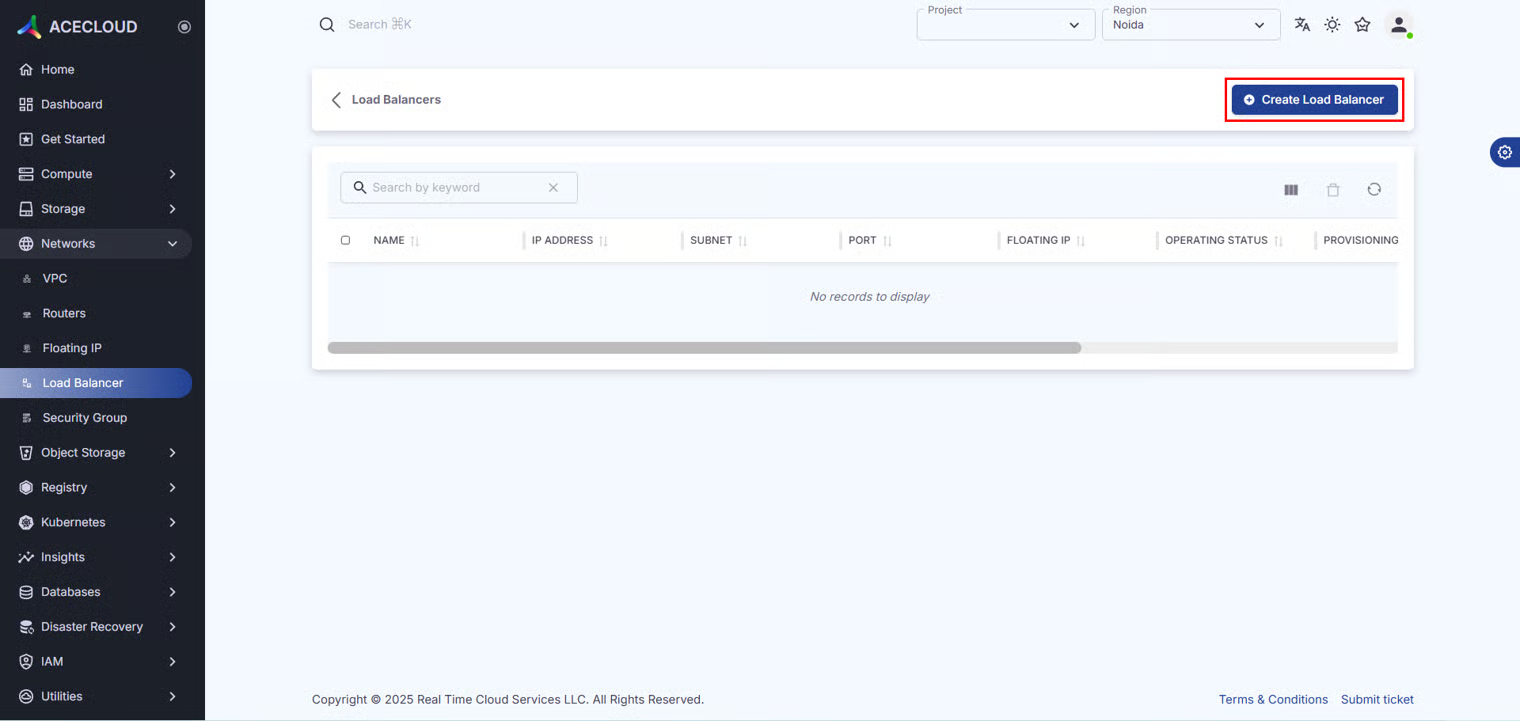
**Step 2:** Navigate to **Networks** and then click on **Load Balancer**.

<figure><img src="https://2627469859-files.gitbook.io/~/files/v0/b/gitbook-x-prod.appspot.com/o/spaces%2F4xe4XNC0Kdt8dOCWNCOa%2Fuploads%2F7T3ZhQAJ9J80vEtc2A94%2Fimage.png?alt=media&#x26;token=9e091570-612f-46b8-8039-c4749968f897" alt=""><figcaption></figcaption></figure>

**Step 3:** Click **Create Load Balancer**.

<figure><img src="https://2627469859-files.gitbook.io/~/files/v0/b/gitbook-x-prod.appspot.com/o/spaces%2F4xe4XNC0Kdt8dOCWNCOa%2Fuploads%2FVFwBHw4iV4eTgjCACWOJ%2Fimage.png?alt=media&#x26;token=852363dd-5c95-4d70-b0df-491f08bb8efe" alt=""><figcaption></figcaption></figure>

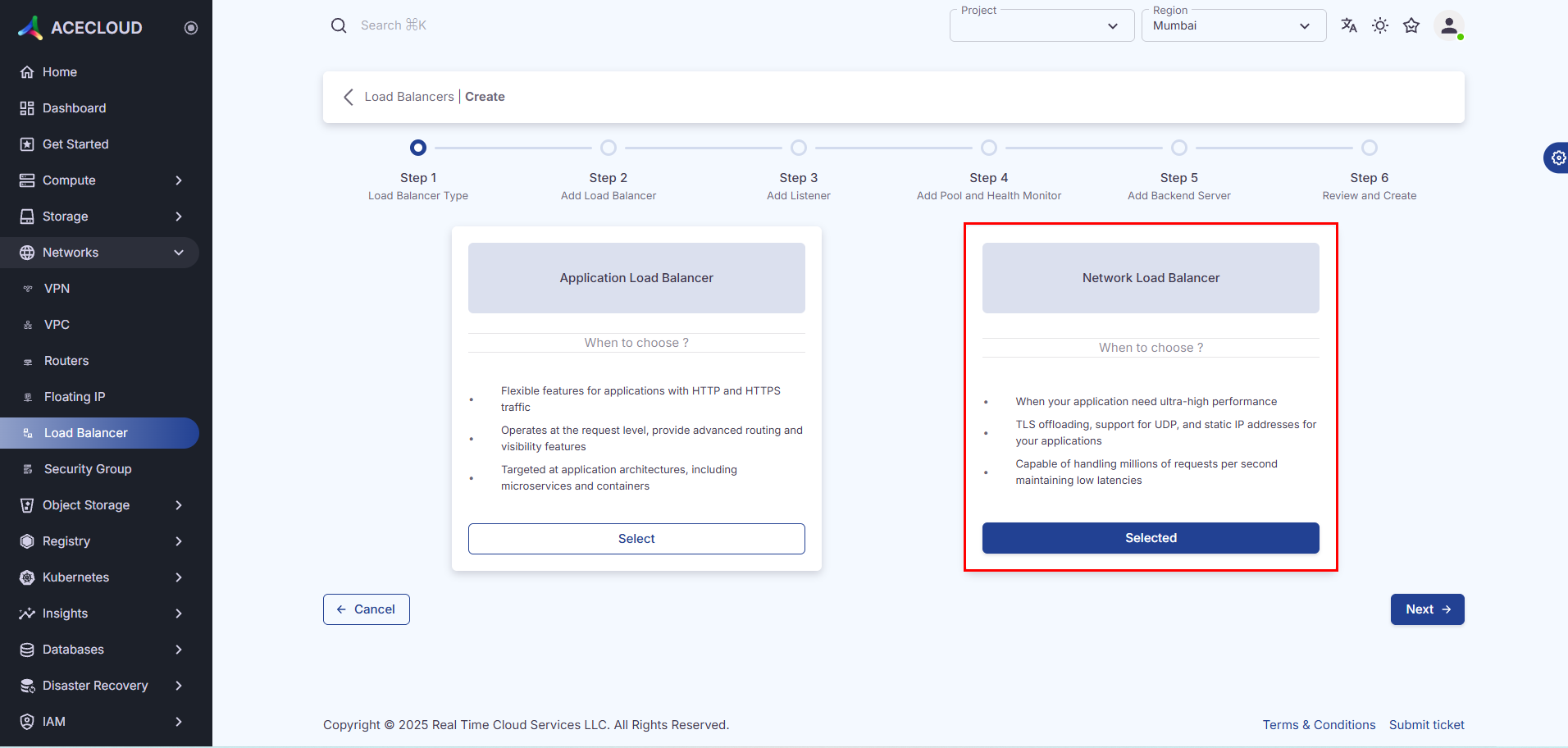
**Step 4:** Select **Network Load Balancer** and click **Next**.

<figure><img src="https://2627469859-files.gitbook.io/~/files/v0/b/gitbook-x-prod.appspot.com/o/spaces%2F4xe4XNC0Kdt8dOCWNCOa%2Fuploads%2FsNd1GRydR9GkhZUqvHd7%2Fimage.png?alt=media&#x26;token=997ef36a-9f73-40e8-98b7-5b8684561bfd" alt=""><figcaption></figcaption></figure>

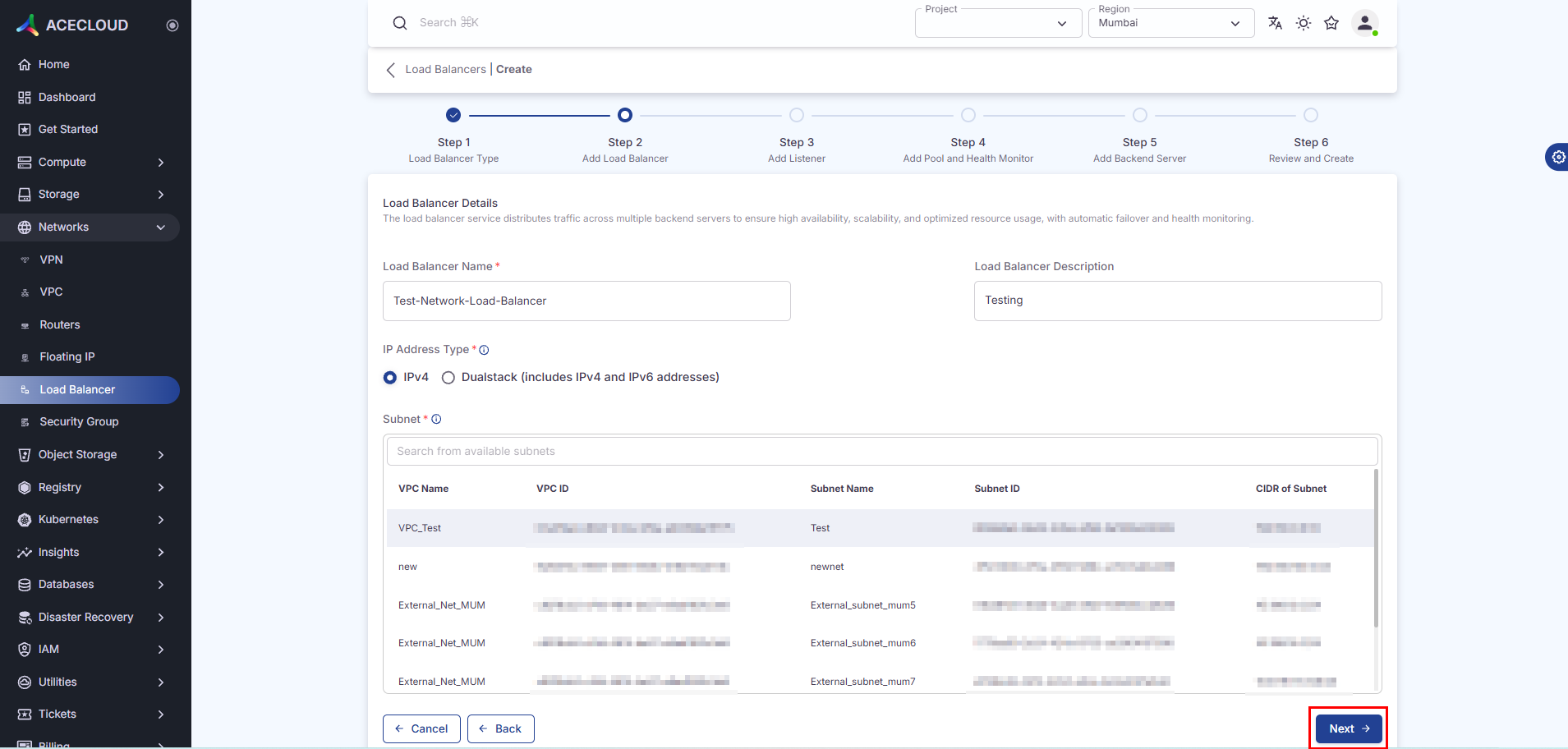
**Step 5:** Enter the **Basic Details** and click **Next**.

<figure><img src="https://2627469859-files.gitbook.io/~/files/v0/b/gitbook-x-prod.appspot.com/o/spaces%2F4xe4XNC0Kdt8dOCWNCOa%2Fuploads%2F1g3z0voKMbmrAQq2rfWa%2Fimage.png?alt=media&#x26;token=989eb05a-b0a8-44f5-9c2a-3cb4a0d1e960" alt=""><figcaption></figcaption></figure>

| **Field**         | **Description**                                |
| ----------------- | ---------------------------------------------- |
| Name\*            | Name of the Load Balancer                      |
| Description       | Description of the Load Balancer               |
| IP Address type\* | Select IP address type from IPv4 and Dualstack |
| Subnet\*          | Select a subnet from the available networks.   |

**Step 6:** Enter the **Listener Details** and click **Next.**

**Note:** If you do not want to create a listener, disable the toggle and click **Next**.

<figure><img src="https://2627469859-files.gitbook.io/~/files/v0/b/gitbook-x-prod.appspot.com/o/spaces%2F4xe4XNC0Kdt8dOCWNCOa%2Fuploads%2FotXi8d90Jaq6dztmsmoV%2Fimage.png?alt=media&#x26;token=ad1f5b20-8c20-4201-8ac7-787782c88592" alt=""><figcaption></figcaption></figure>

| **Field**                      | **Description**                                                                                                           |
| ------------------------------ | ------------------------------------------------------------------------------------------------------------------------- |
| Listener Name\*                | Enter the name of the Listener.                                                                                           |
| Listener Description           | Enter the description of the Listener.                                                                                    |
| Listener Protocol\*            | <p>Select a protocol for the listener from the below options:</p><ol start="1"><li>TCP</li><li>UDP</li><li>SCTP</li></ol> |
| Listener Port\*                | The protocol port number for the resource. The default is 1.                                                              |
| Client Data Timeout (in ms)    | Enter client inactivity timeout in milliseconds. The default is 50000.                                                    |
| TCP Inspect Timeout (in ms)    | Enter time, in milliseconds, to wait for additional TCP packets for content inspection. The default is 0.                 |
| Member Connect Timeout (in ms) | Enter member connection timeout in milliseconds. The default is 5000.                                                     |
| Member Data Timeout (in ms)    | Enter member inactivity timeout in milliseconds. The default is 50000.                                                    |
| Allowed CIDRs                  | Enter a list of IPv4, IPv6 or mix of both CIDRs.                                                                          |
| Connection Limit\*             | The maximum number of connections permitted for this listener. Default value is -1 which represents infinite connections. |

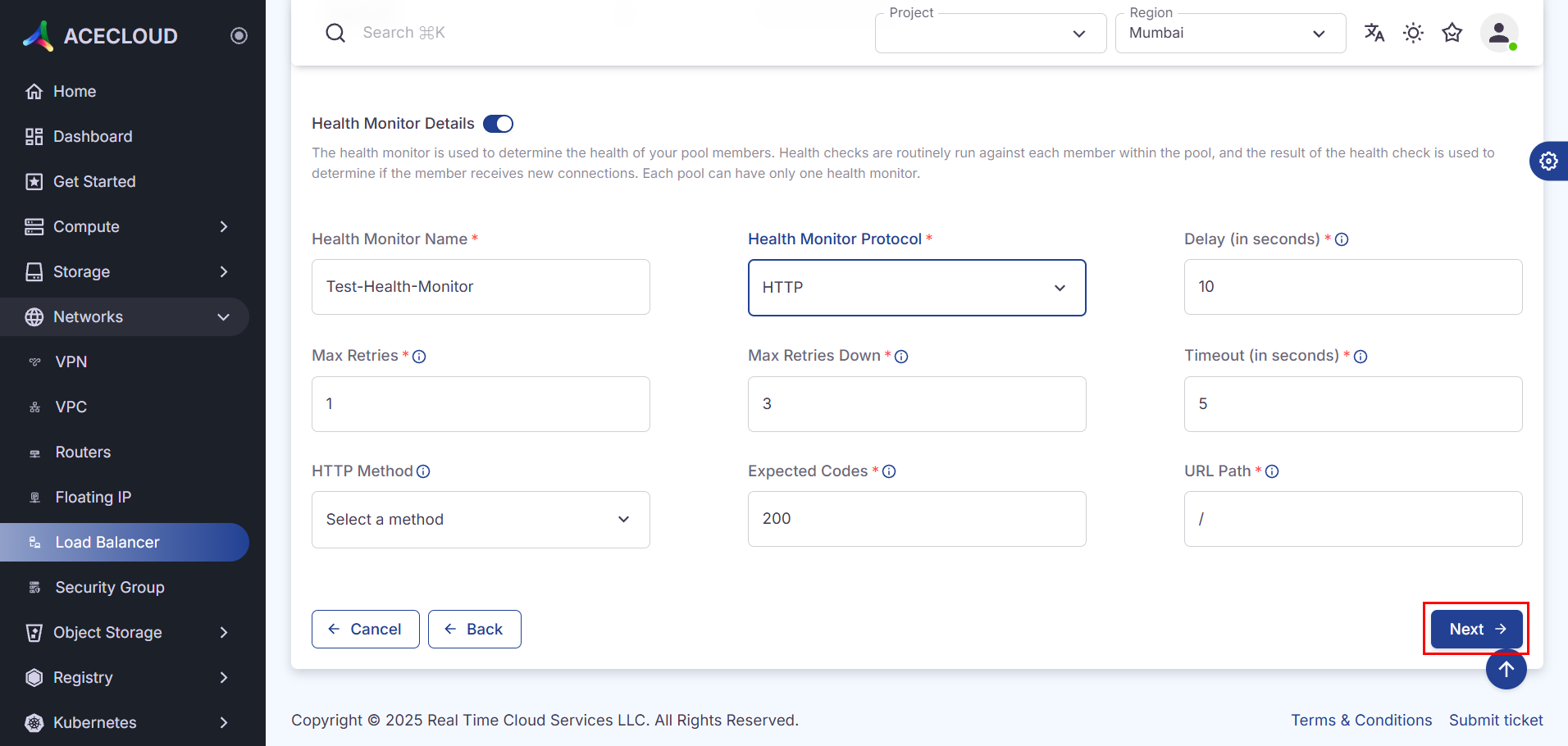
**Step 7:** Enter **Pool Details**, **Server Monitor Health** details, and click **Next.**

**Note:**

1. If you have not created a **Listener**, you will not be able to create a  **Pool** and **Monitor**.
2. If you have not created a **Pool**, you will not be able to create a **Monitor**.
3. If you do not want to create a **Pool** and **Monitor,** disable the toggle and click **Next**.

<figure><img src="https://2627469859-files.gitbook.io/~/files/v0/b/gitbook-x-prod.appspot.com/o/spaces%2F4xe4XNC0Kdt8dOCWNCOa%2Fuploads%2F5VxmFIondTPaduHdldht%2Fimage.png?alt=media&#x26;token=b719f342-11a6-4d86-b5c4-ae470389c6d3" alt=""><figcaption></figcaption></figure>

<figure><img src="https://2627469859-files.gitbook.io/~/files/v0/b/gitbook-x-prod.appspot.com/o/spaces%2F4xe4XNC0Kdt8dOCWNCOa%2Fuploads%2FH543WHDW33rKQ3YJJEeU%2Fimage.png?alt=media&#x26;token=9959dc35-537e-4cf8-9046-40111cbadfdd" alt=""><figcaption></figcaption></figure>

| **Field**           | **Description**                                                                                                                                                                                                                                 |
| ------------------- | ----------------------------------------------------------------------------------------------------------------------------------------------------------------------------------------------------------------------------------------------- |
| Pool Name\*         | Enter the name of the Pool.                                                                                                                                                                                                                     |
| Pool Description    | Enter the description of the pool.                                                                                                                                                                                                              |
| Pool Algorithm\*    | <p>Select the load balancing algorithm for the pool from the below options:</p><ol start="1"><li>Least connections</li><li>Round robin</li><li>Source IP</li></ol>                                                                              |
| Pool Protocol\*     | <p>Select a protocol for the pool from the below options:</p><ol start="1"><li>HTTP</li><li>HTTPS</li><li>PROXY</li><li>PROXYV2</li><li>TCP</li></ol>                                                                                           |
| TLS Enabled         | <ul><li>Select <strong>YES</strong> to enable TLS, enabling it will help member to use TLS encryption.</li><li>Select <strong>NO</strong> to disable TLS.</li></ul>                                                                             |
| TLS Cipher String   | Enter List of ciphers in OpenSSL format and it should be colon-separated.                                                                                                                                                                       |
| Session Persistence | <p>Select a JSON object specifying the session persistence for the pool from the below options:</p><ol start="1"><li>HTTP Cookie</li><li>APP Cookie</li><li>Source IP</li></ol>                                                                 |
| Cookie Name\*       | Enter the name of the cookie to use for session persistence.                                                                                                                                                                                    |
| Monitor Name\*      | Enter the name of the Health Monitor.                                                                                                                                                                                                           |
| Monitor Protocol\*  | <p>Select a protocol for the health monitor from the below options:</p><ol start="1"><li>HTTP</li><li>HTTPS</li><li>PING</li><li>TCP</li><li>TLS-HELLO</li><li>UDP-CONNECT</li><li>SCTP</li></ol>                                               |
| Max Retries Down\*  | Enter the number of allowed check failures before changing the operating status of the member to ERROR. A valid value is from 1 to 10. The default is 3.                                                                                        |
| Delay (in sec.)\*   | Enter the interval, in seconds, between health checks. The default is 10.                                                                                                                                                                       |
| Max Retries\*       | Enter the number of successful checks before changing the operating status of the member to ONLINE. The default is 1.                                                                                                                           |
| Timeout (in sec.)\* | The time, in seconds, after which a health check times out. The default is 5.                                                                                                                                                                   |
| HTTP Method         | <p>Select the HTTP method that the health monitor uses for requests from the below options:</p><ol start="1"><li>GET</li><li>HEAD</li><li>POST</li><li>PUT</li><li>DELETE</li><li>TRACE</li><li>OPTIONS</li><li>PATCH</li><li>CONNECT</li></ol> |
| Expected Codes\*    | Enter the HTTP status codes expected in response from the member to declare it healthy. The default is 200.                                                                                                                                     |
| URL Path\*          | Enter the HTTP URL path of the request sent by the monitor to test the health of a member. Must be a string that begins with a forward slash. The default URL path is /.                                                                        |

**Step 8**: Enter **the Backend Server** details and click **Next**.

**Note:**

1. If you have not created a **Pool**, you will not be able to create **Backend Servers**.
2. If you do not want to create a **Backend Server,** disable the toggle and click **Next**.

<figure><img src="https://2627469859-files.gitbook.io/~/files/v0/b/gitbook-x-prod.appspot.com/o/spaces%2F4xe4XNC0Kdt8dOCWNCOa%2Fuploads%2FvL1jl0IzD702zHEwPFZn%2Fimage.png?alt=media&#x26;token=8580a110-6910-4819-bef4-b53d564843f1" alt=""><figcaption></figcaption></figure>

| **Field**         | **Description**                                                                                                                       |
| ----------------- | ------------------------------------------------------------------------------------------------------------------------------------- |
| Add Servers\*     | Select the servers from the dropdown.                                                                                                 |
| Specific IP       | Enter the specific IP you want to Add and click on **Add** button.                                                                    |
| Name              | Name of the server.                                                                                                                   |
| IP Address        | IP address of the server.                                                                                                             |
| Associated Subnet | Name of the subnet, associated with the server.                                                                                       |
| Specific Port\*   | Enter the specific port you want to add.                                                                                              |
| Monitor Address   | Enter an alternate IP address used for health monitoring a member.                                                                    |
| Monitor Port      | Enter an alternate protocol port used for health monitoring a member.                                                                 |
| Weight            | Enter the weight of a member determines the portion of requests or connections it services compared to the other members of the pool. |

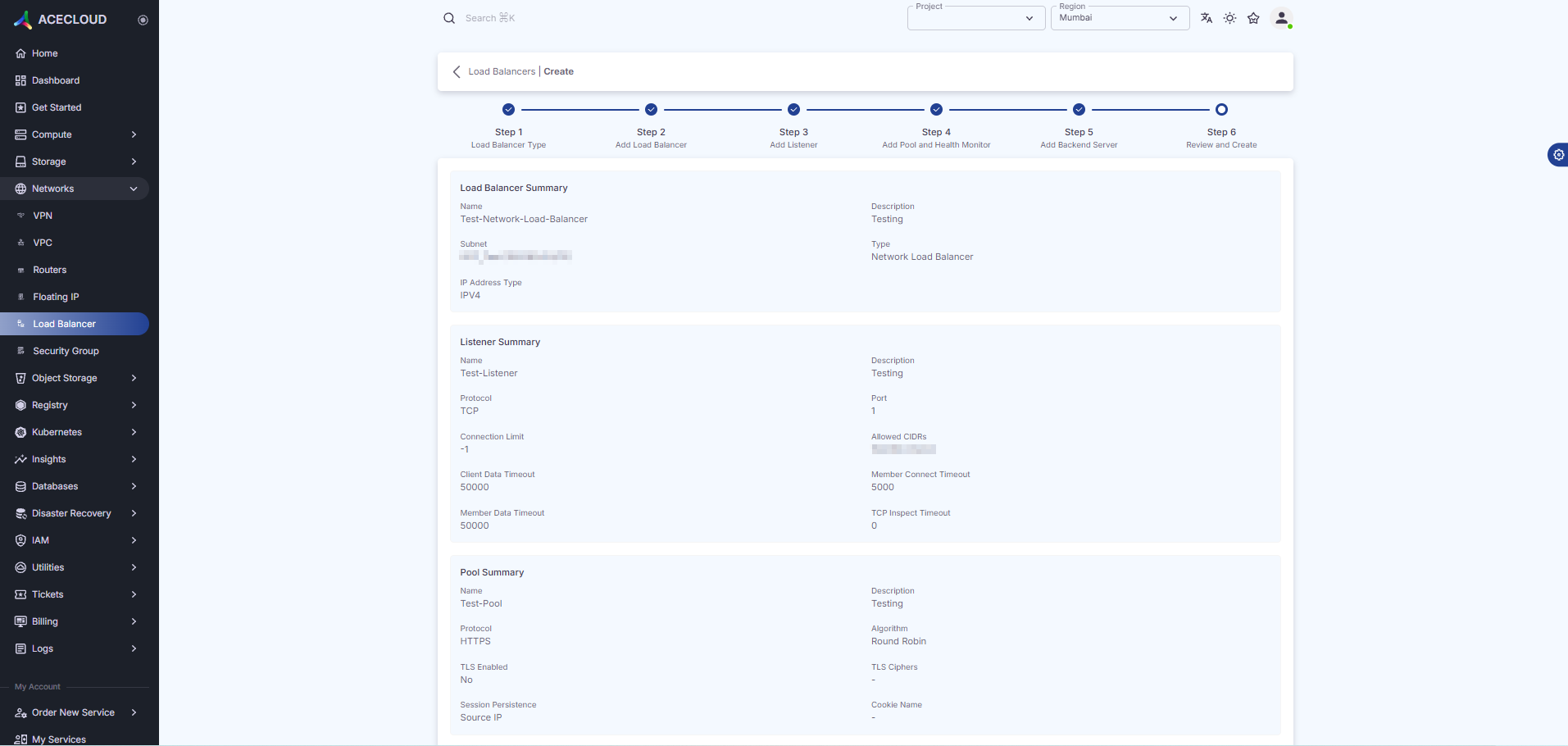
**Step 9:** Review your load balancer details and click on the **Create** button.

<figure><img src="https://2627469859-files.gitbook.io/~/files/v0/b/gitbook-x-prod.appspot.com/o/spaces%2F4xe4XNC0Kdt8dOCWNCOa%2Fuploads%2FYNk7v1DE9cDRRBrsRLOP%2Fimage.png?alt=media&#x26;token=eeebe0ac-3cc4-4257-9997-485e26d23114" alt=""><figcaption></figcaption></figure>