> For the complete documentation index, see [llms.txt](https://docs.acecloud.ai/knowledge-base/llms.txt). Markdown versions of documentation pages are available by appending `.md` to page URLs; this page is available as [Markdown](https://docs.acecloud.ai/knowledge-base/network/how-to-manage-vpn-services.md).
# How to Manage VPN Services?
### a. How do I view all of my VPN services?
To view all of your VPN services, follow the steps below:
**Step 1:** [Login](https://customer.acecloudhosting.com/index.php?m=ace_product_register_addon\&action=login) to your account.
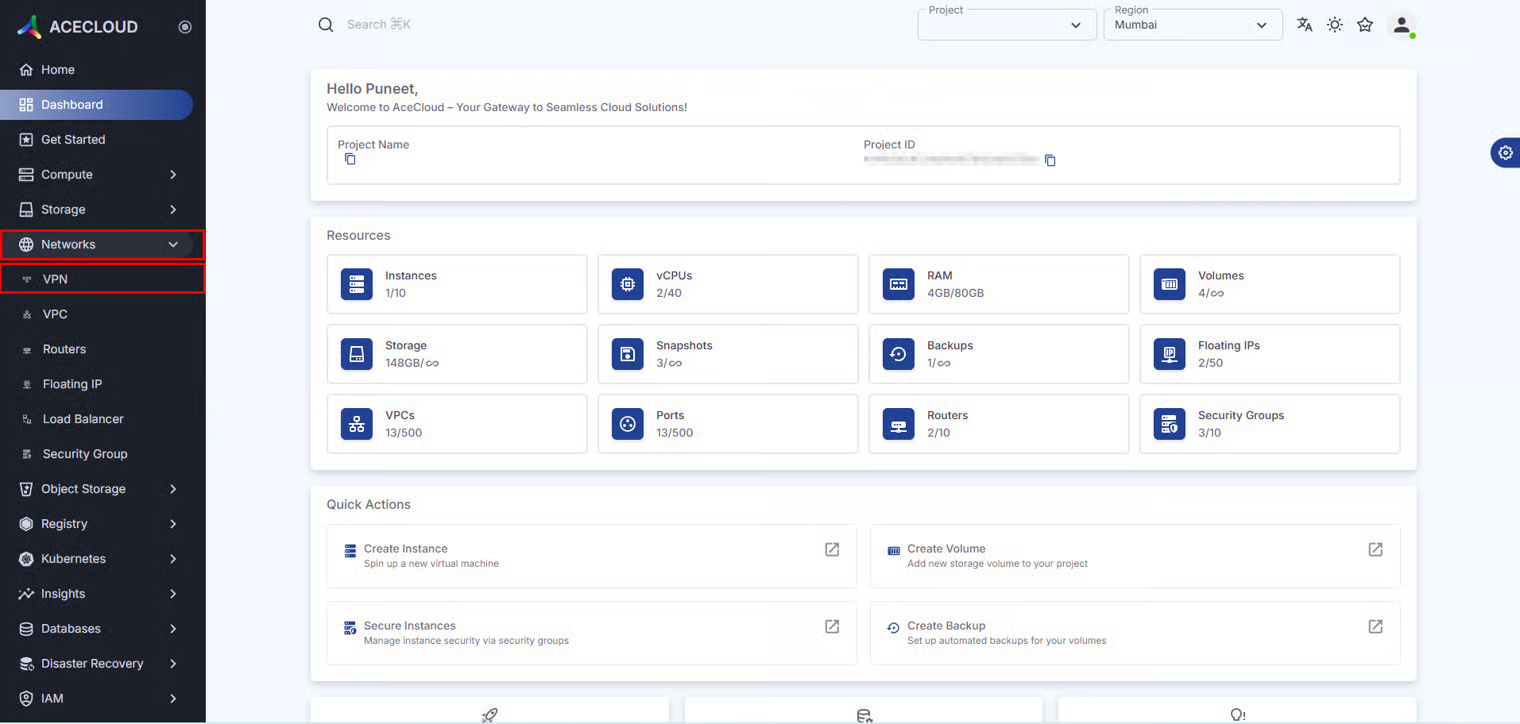
**Step 2:** Navigate to **Networks** and then click on **VPN**.
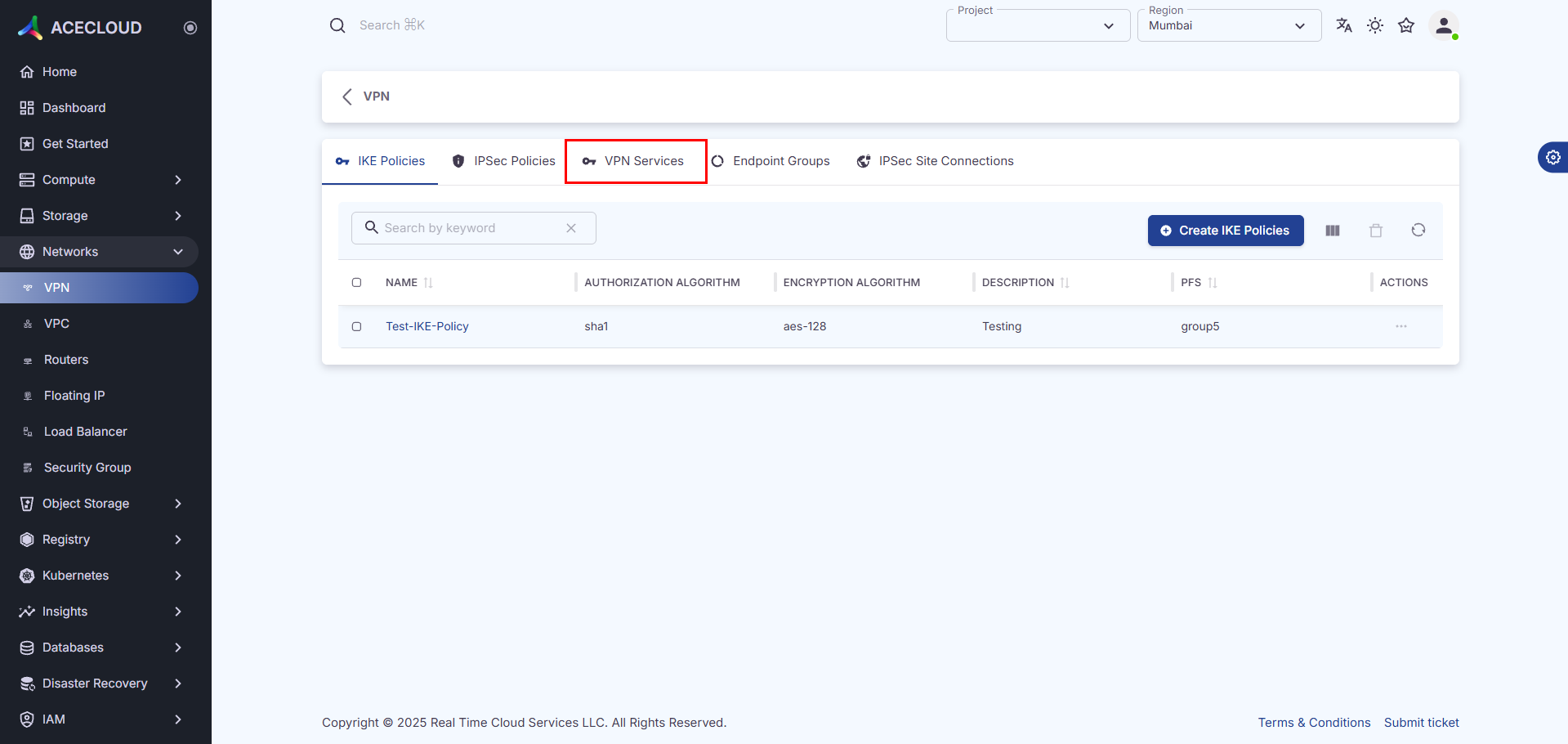
**Step 3:** Click on the **VPN Services** tab to view all of your VPN services.
### b. How do I create a VPN service?
To create a VPN service, follow the steps below:
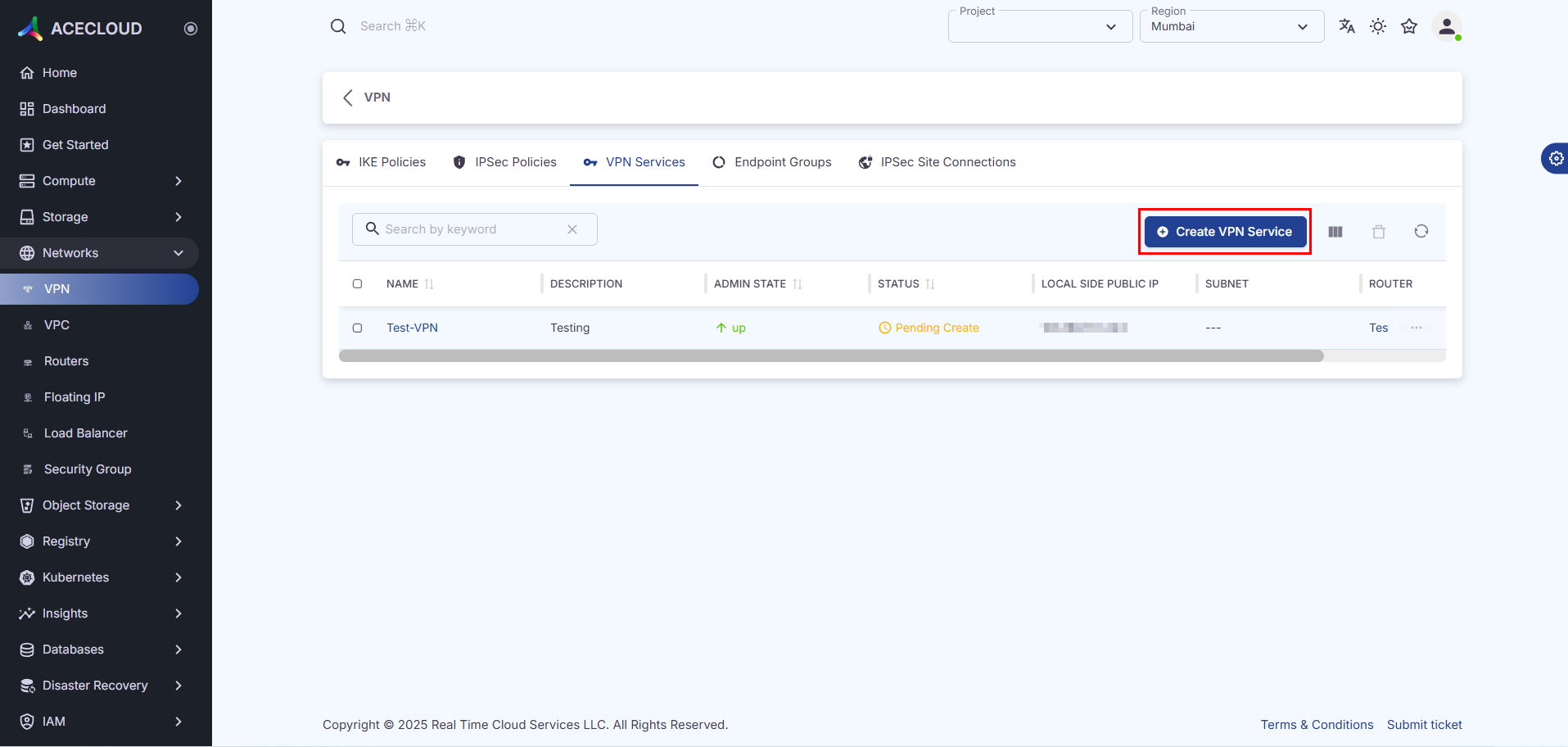
**Step 1:** Click **Create VPN Service**.
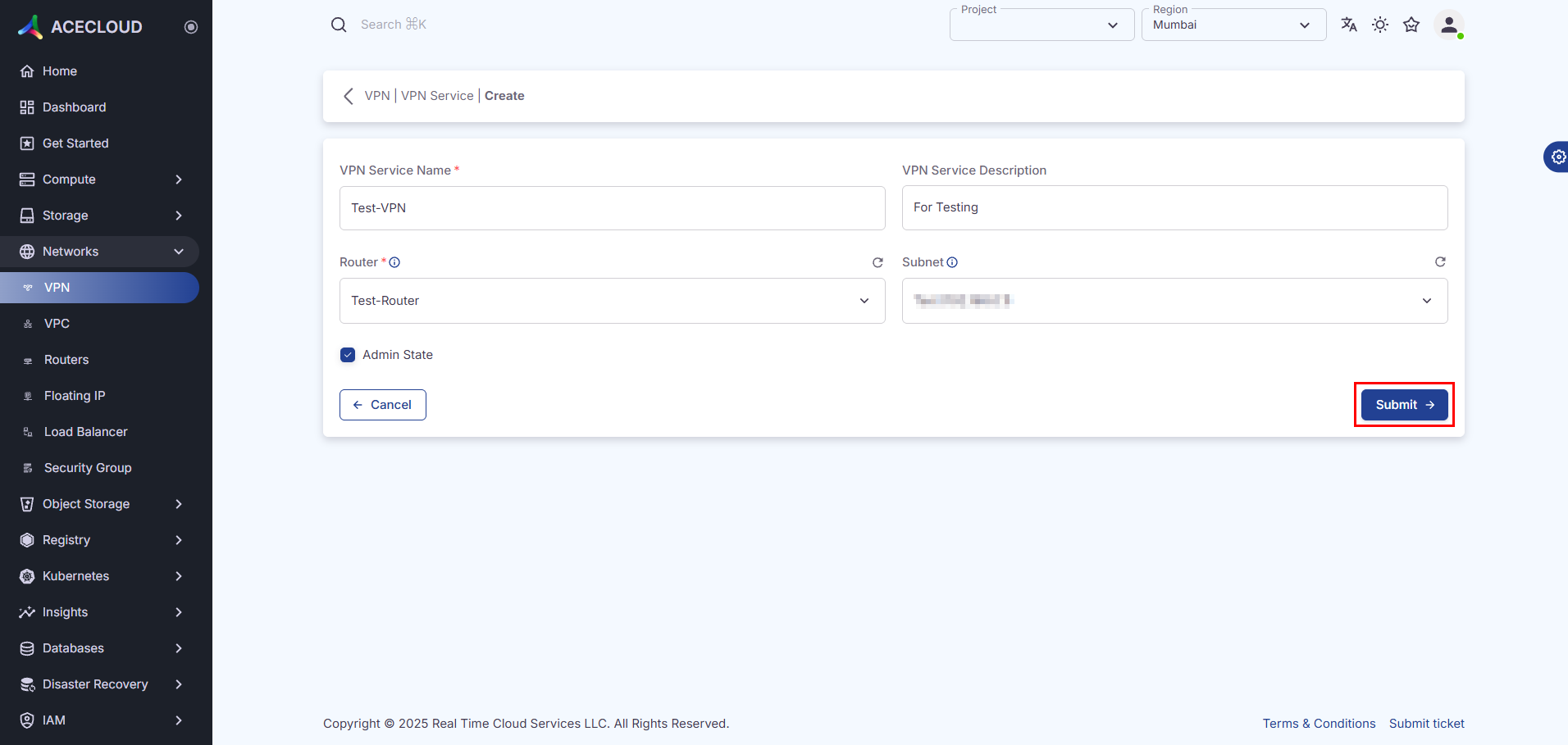
**Step 2:** Enter the details and click **Submit**.
| Field | Description |
| ----------- | ----------------------------------------------------------------- |
| Name | Enter a unique name for the VPN service. |
| Description | Enter a short explanation of the purpose or usage of the service. |
| Router | Select the network router to be associated with the VPN service. |
| Subnets | Select the IP address range that the VPN service covers. |
| Admin State | Enable it to make the VPN service administrative status active. |
### c. How do I edit a VPN service?
To edit a VPN service, follow the steps below:
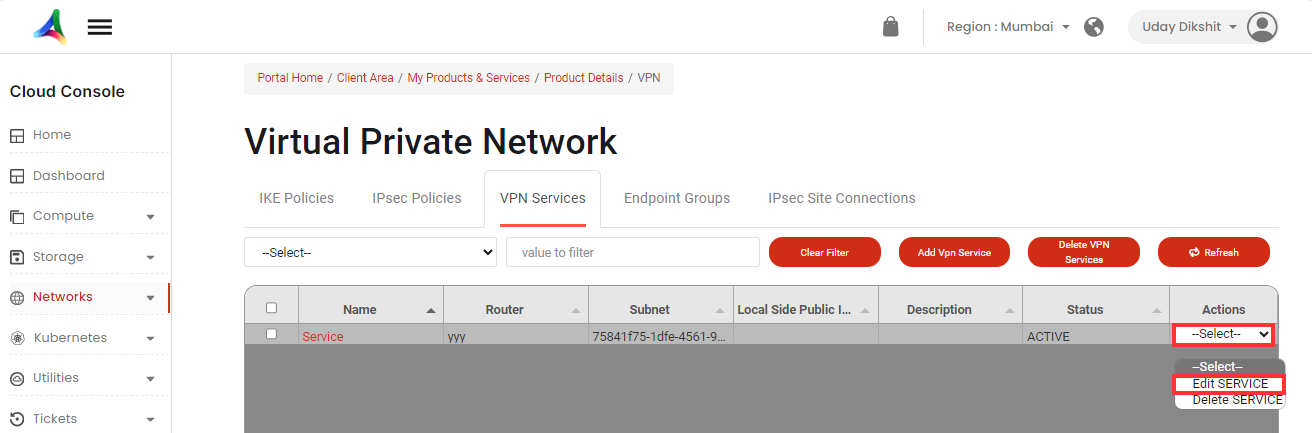
**Step 1:** Choose the VPN services you want to edit, click on **Actions**, and choose **Edit** **Service** from the drop-down menu.
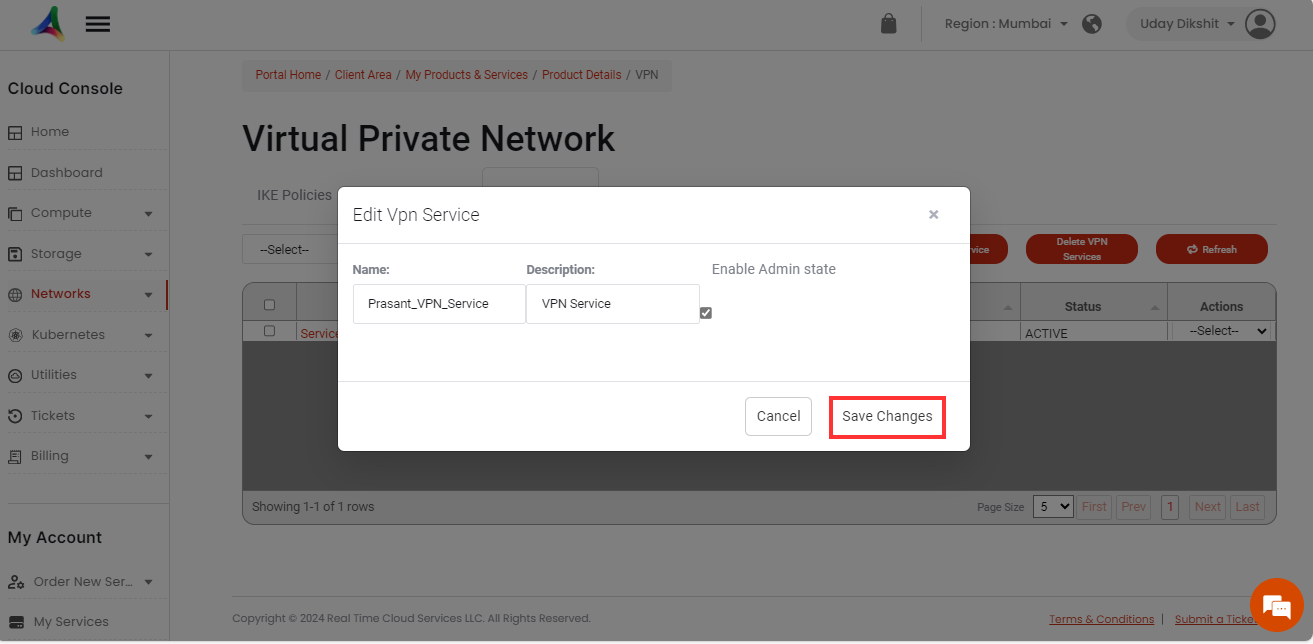
**Step 2:** Update the details that you want to change and click on **Save Changes**.
### d. How do I delete a VPN service?
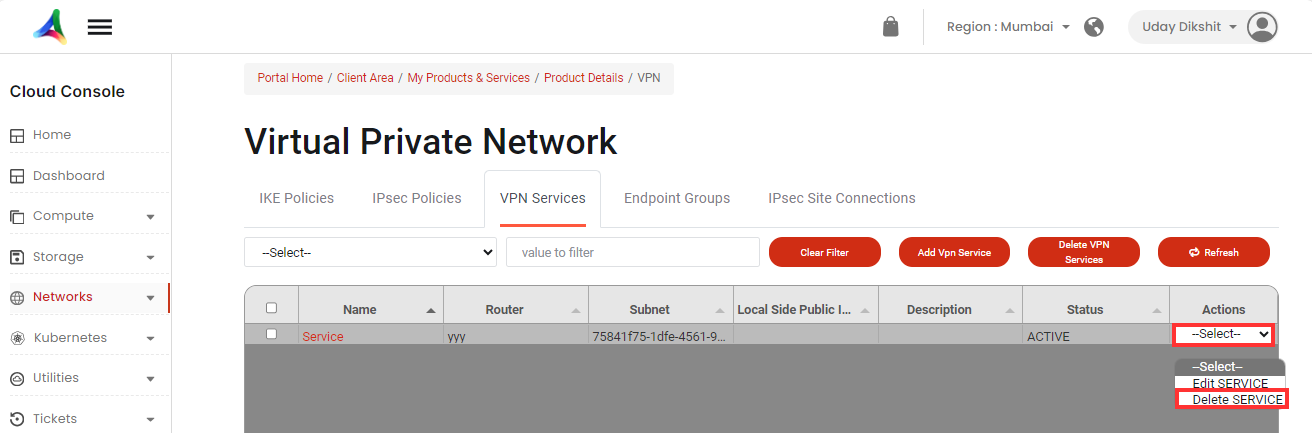
You can delete a VPN service by clicking on **Select** and then selecting **Delete** **Service** from the drop-down menu.
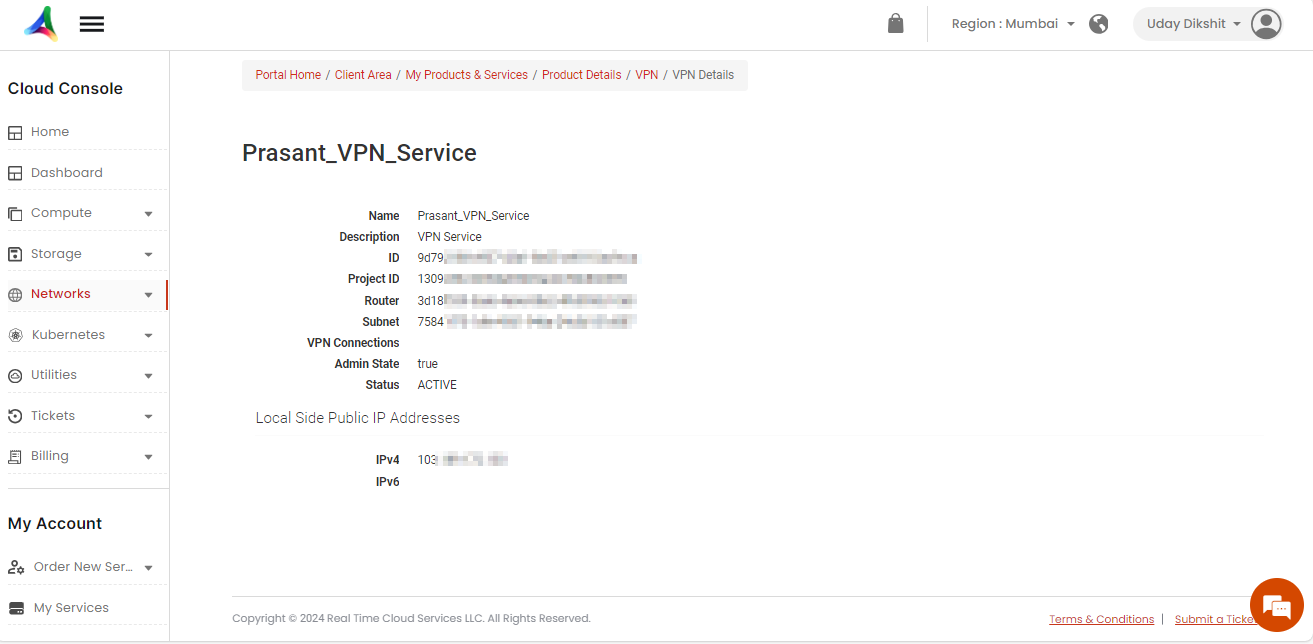
### e. How do I view an overview of the VPN service?
To view an overview of the VPN service, follow the steps below:
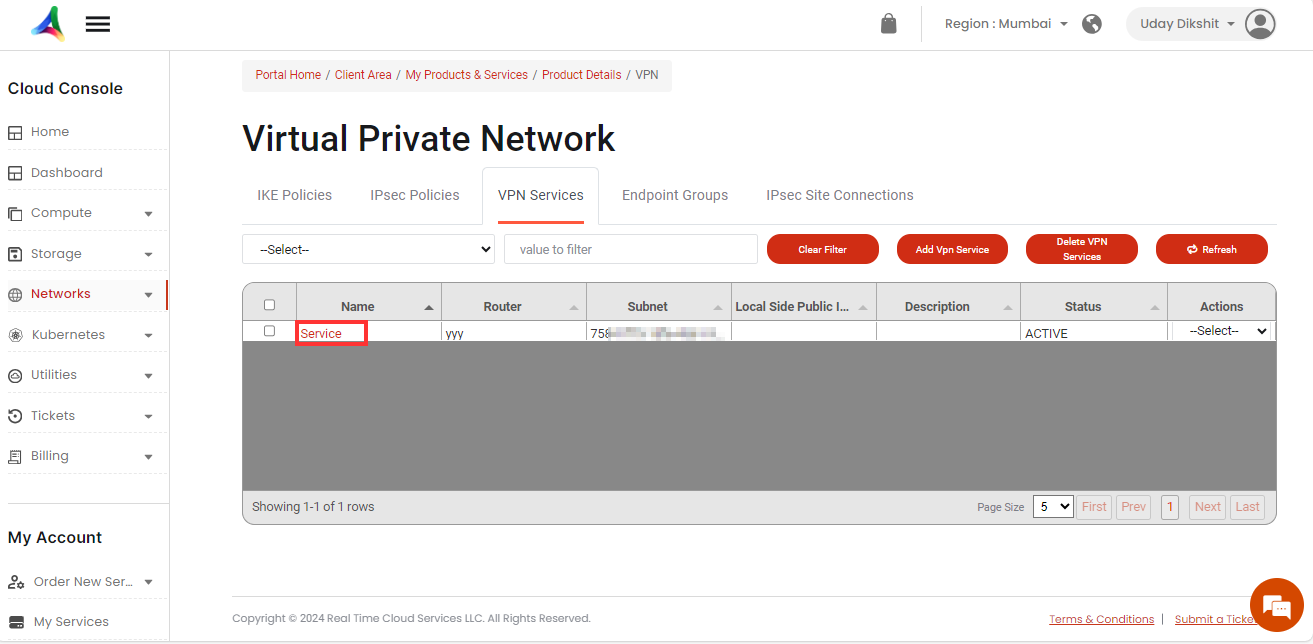
**Step 1:** Click on the VPN service name for which you want to view the overview.
**Step 2:** Here, you can view the overview of the selected VPN service.