# How to Manage VPN Services?

### a. How do I view all of my VPN services?

To view all of your VPN services, follow the steps below:

**Step 1:** [Login](https://customer.acecloudhosting.com/index.php?m=ace_product_register_addon\&action=login) to your account.

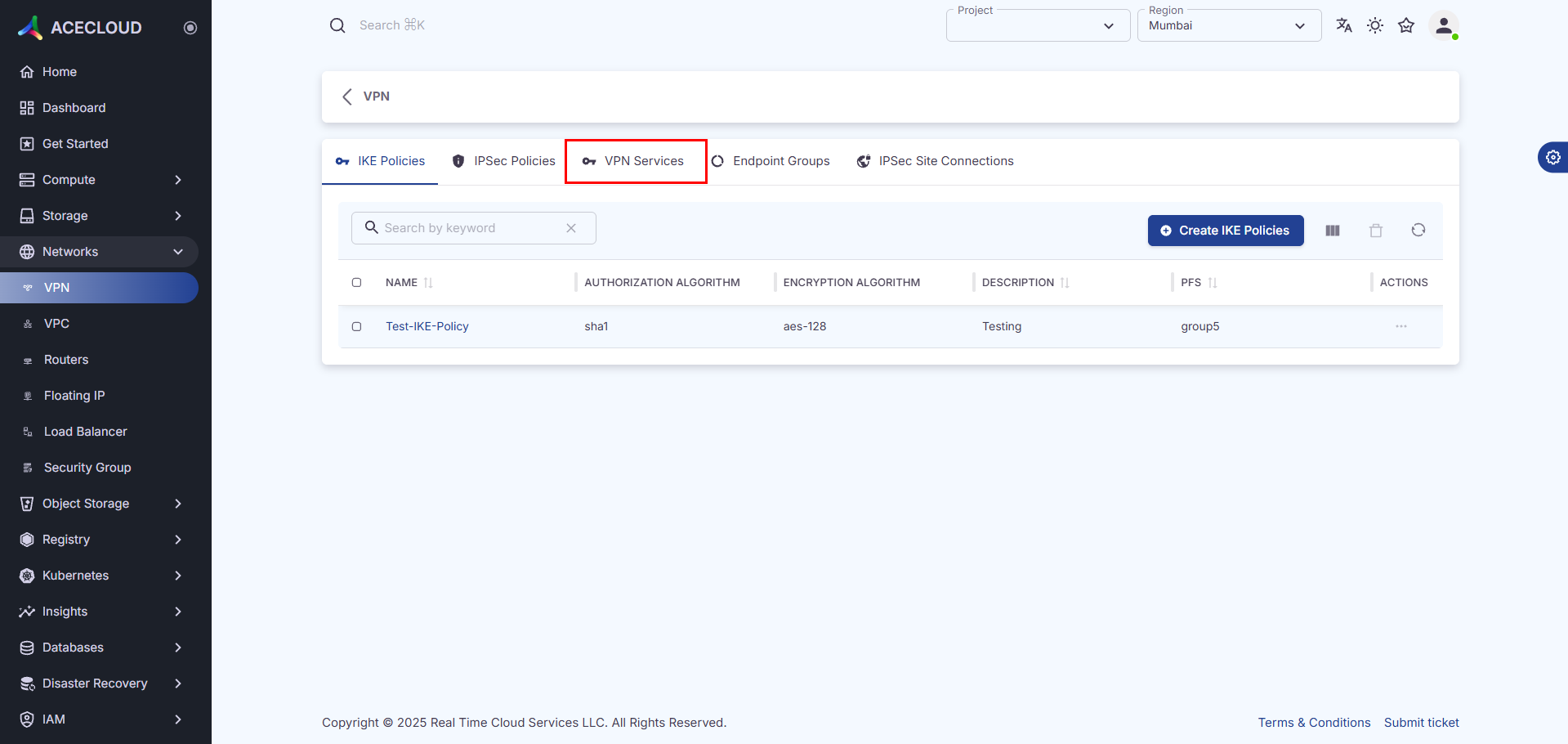
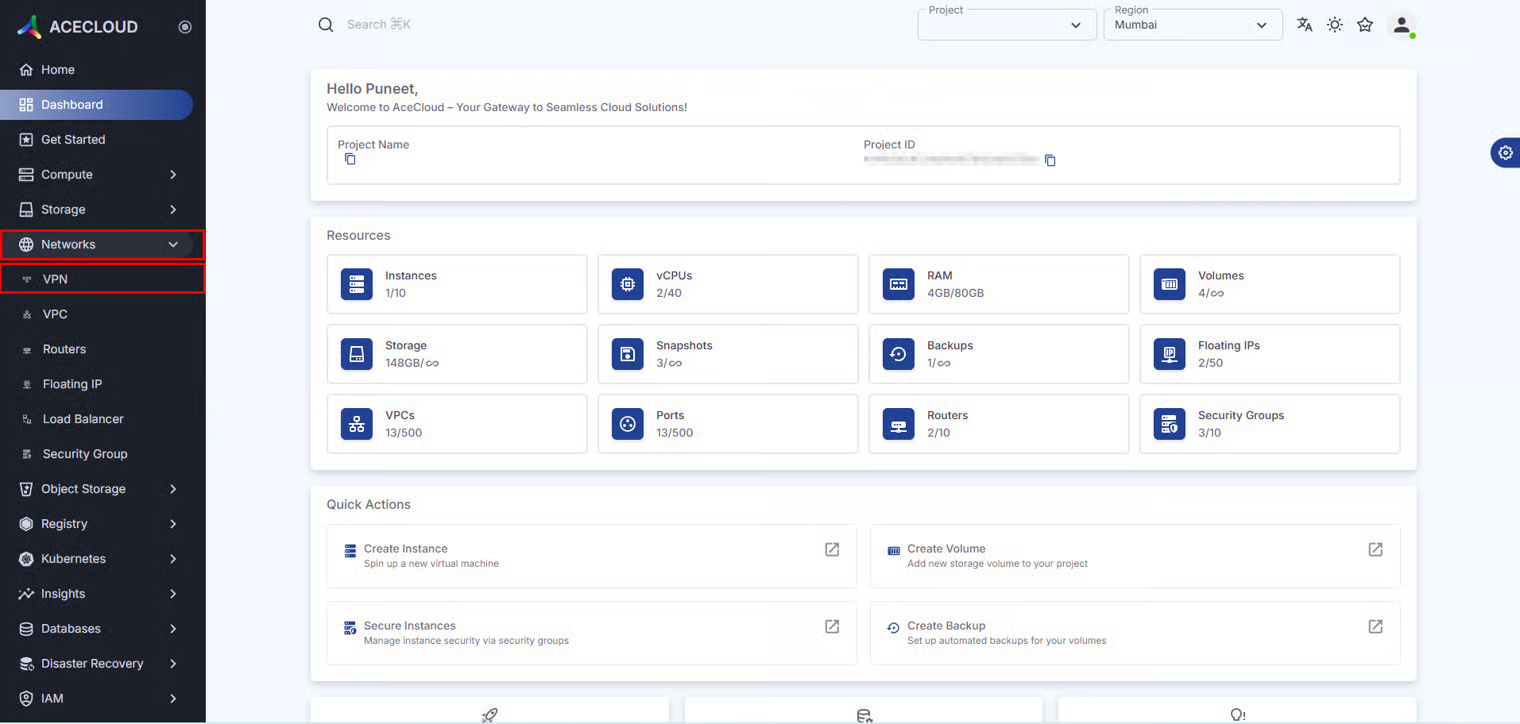
**Step 2:** Navigate to **Networks** and then click on **VPN**.

<figure><img src="https://2627469859-files.gitbook.io/~/files/v0/b/gitbook-x-prod.appspot.com/o/spaces%2F4xe4XNC0Kdt8dOCWNCOa%2Fuploads%2F0WbrtkgXNY88MOBbgOYc%2Fimage.png?alt=media&#x26;token=82f3d2b2-0d45-47f9-93c2-d901fe3215c8" alt=""><figcaption></figcaption></figure>

**Step 3:** Click on the **VPN Services** tab to view all of your VPN services.

<figure><img src="https://2627469859-files.gitbook.io/~/files/v0/b/gitbook-x-prod.appspot.com/o/spaces%2F4xe4XNC0Kdt8dOCWNCOa%2Fuploads%2FZDmqP4ZiSB8dP6Q7OY77%2Fimage.png?alt=media&#x26;token=eeaae68d-c2d5-4fcc-bc20-86b20812d7c4" alt=""><figcaption></figcaption></figure>

### b. How do I create a VPN service?

To create a VPN service, follow the steps below:

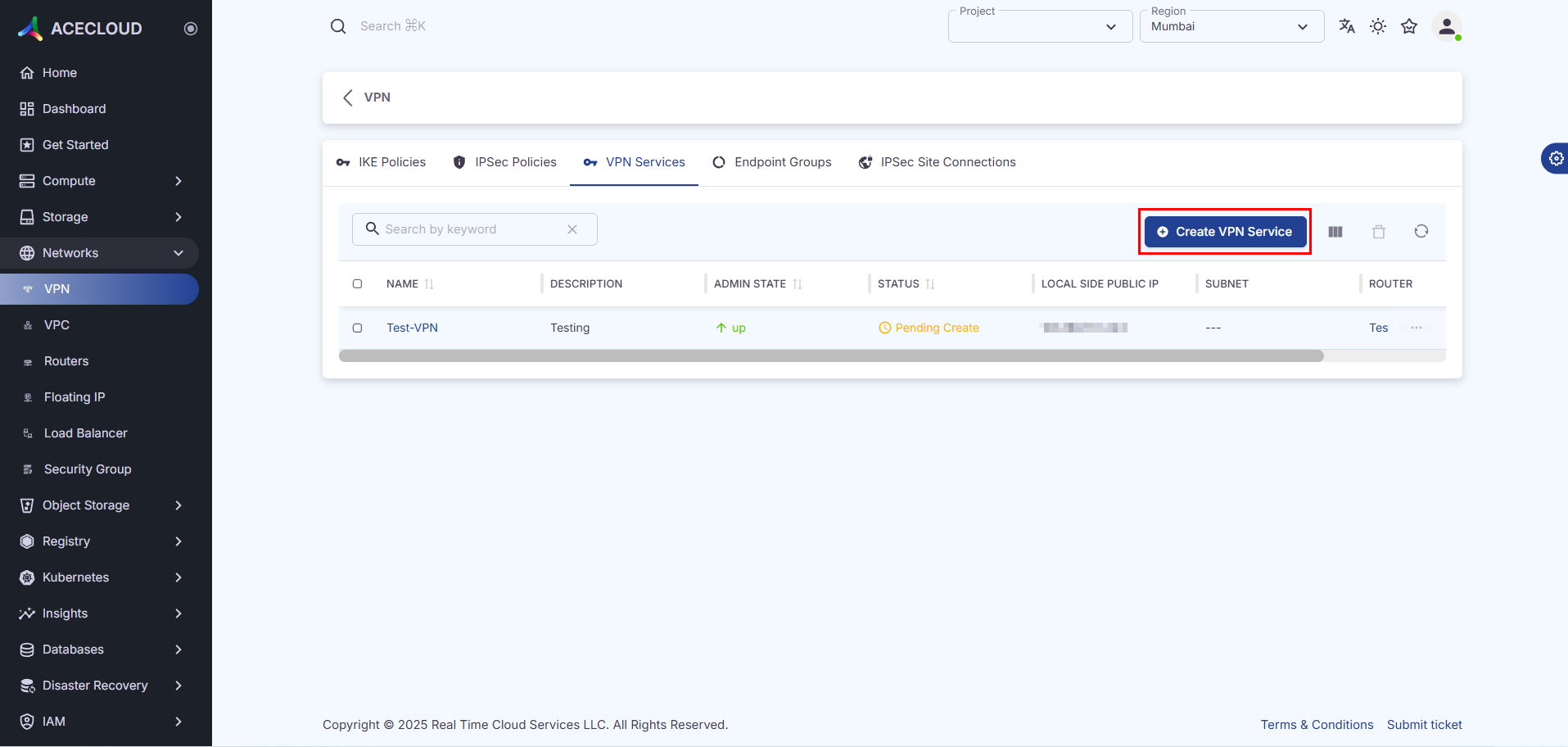
**Step 1:** Click **Create VPN Service**.

<figure><img src="https://2627469859-files.gitbook.io/~/files/v0/b/gitbook-x-prod.appspot.com/o/spaces%2F4xe4XNC0Kdt8dOCWNCOa%2Fuploads%2FQXxxwnai9vcH4ogSw6d7%2Fimage.png?alt=media&#x26;token=00b17ed5-9ad9-461d-aedf-95f088e410be" alt=""><figcaption></figcaption></figure>

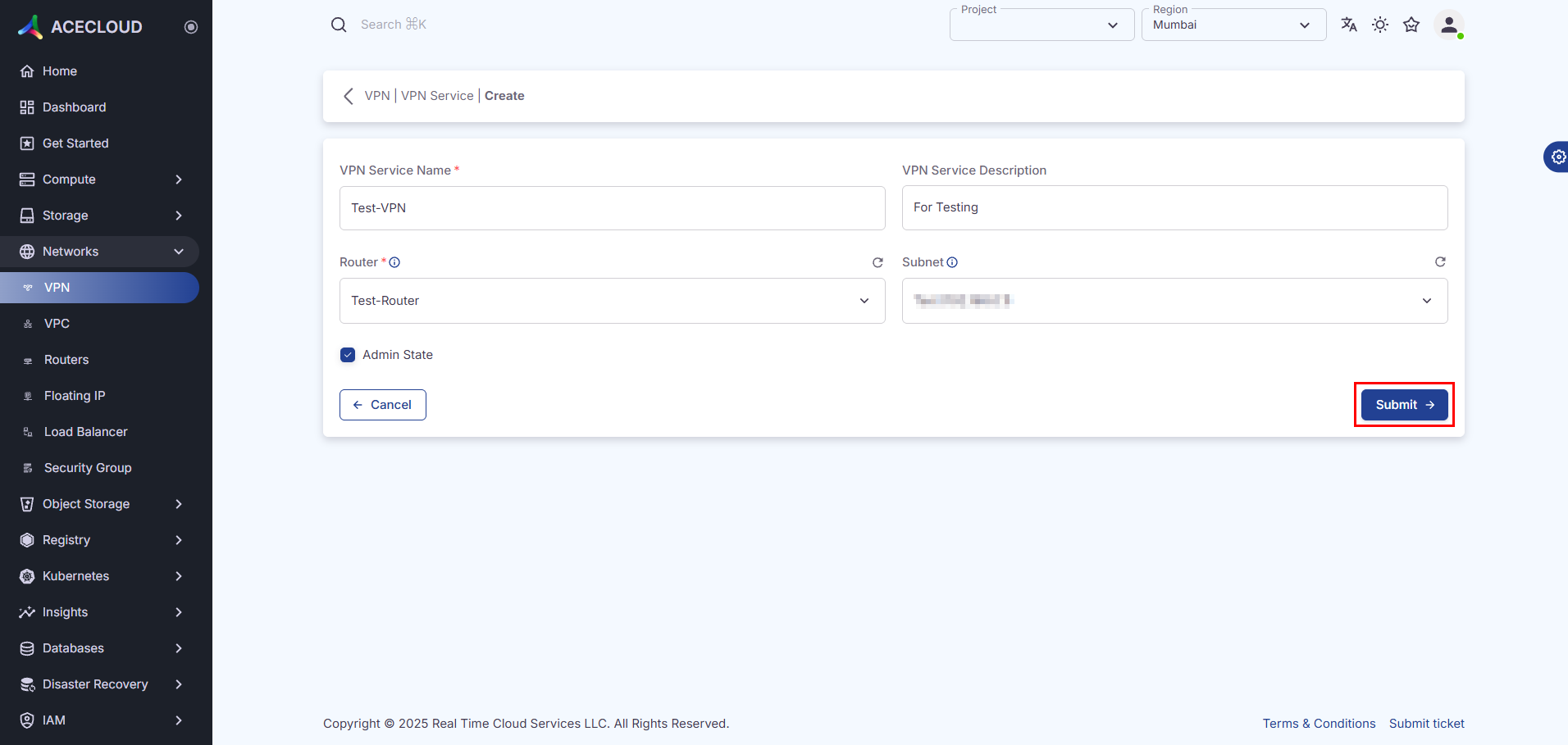
**Step 2:** Enter the details and click **Submit**.

<figure><img src="https://2627469859-files.gitbook.io/~/files/v0/b/gitbook-x-prod.appspot.com/o/spaces%2F4xe4XNC0Kdt8dOCWNCOa%2Fuploads%2FhN0lIpYhjsjrfRvWqmeD%2Fimage.png?alt=media&#x26;token=491d77dc-c433-41d5-be25-a0c0b902f57a" alt=""><figcaption></figcaption></figure>

| Field       | Description                                                       |
| ----------- | ----------------------------------------------------------------- |
| Name        | Enter a unique name for the VPN service.                          |
| Description | Enter a short explanation of the purpose or usage of the service. |
| Router      | Select the network router to be associated with the VPN service.  |
| Subnets     | Select the IP address range that the VPN service covers.          |
| Admin State | Enable it to make the VPN service administrative status active.   |

### c. How do I edit a VPN service?

To edit a VPN service, follow the steps below:

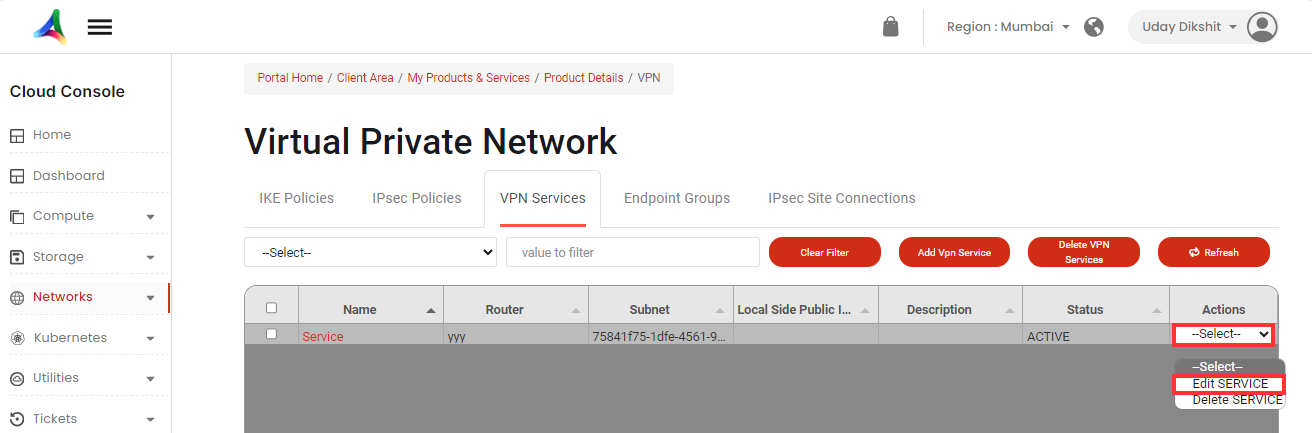
**Step 1:** Choose the VPN services you want to edit, click on **Actions**, and choose **Edit** **Service** from the drop-down menu.

<figure><img src="https://2627469859-files.gitbook.io/~/files/v0/b/gitbook-x-prod.appspot.com/o/spaces%2F4xe4XNC0Kdt8dOCWNCOa%2Fuploads%2FWR7VEikgzoJzZUtyna3c%2Fimage.png?alt=media&#x26;token=c2497d0b-3a73-4849-ae54-b25054aed8e2" alt=""><figcaption></figcaption></figure>

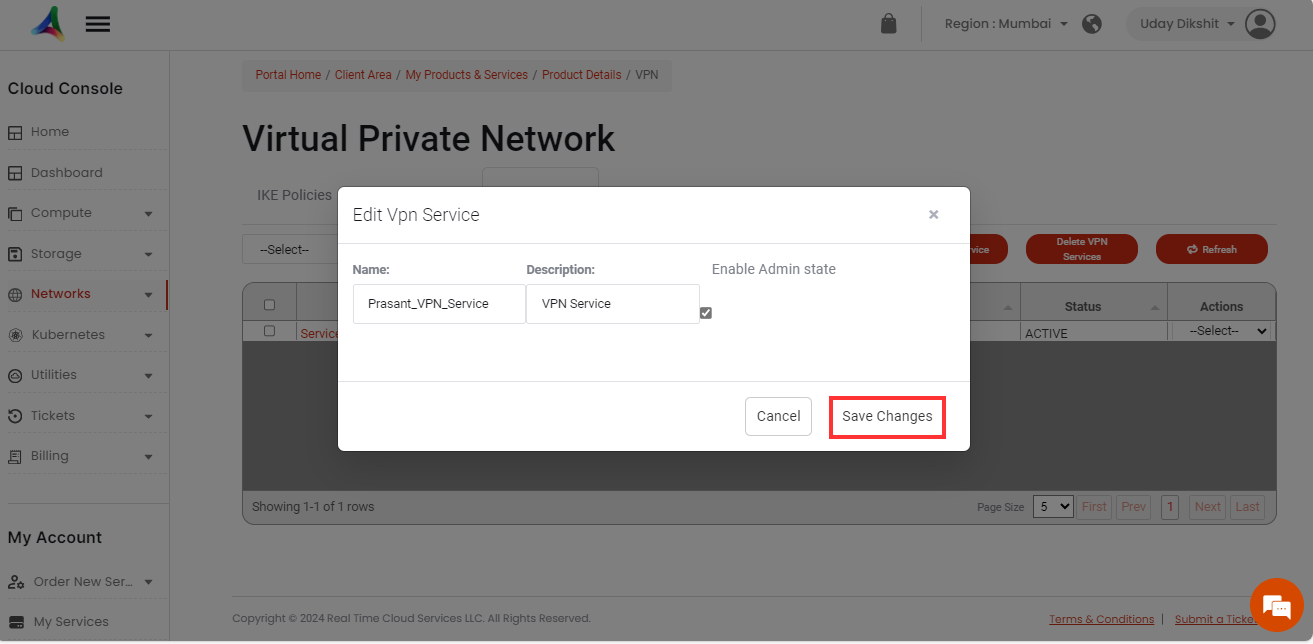
**Step 2:** Update the details that you want to change and click on **Save Changes**.

<figure><img src="https://2627469859-files.gitbook.io/~/files/v0/b/gitbook-x-prod.appspot.com/o/spaces%2F4xe4XNC0Kdt8dOCWNCOa%2Fuploads%2FDtSkiT0ocI0A0qQozDPP%2Fimage.png?alt=media&#x26;token=528c418c-b4a0-4fc3-b4cf-f8d1750f3c18" alt=""><figcaption></figcaption></figure>

### d. How do I delete a VPN service?

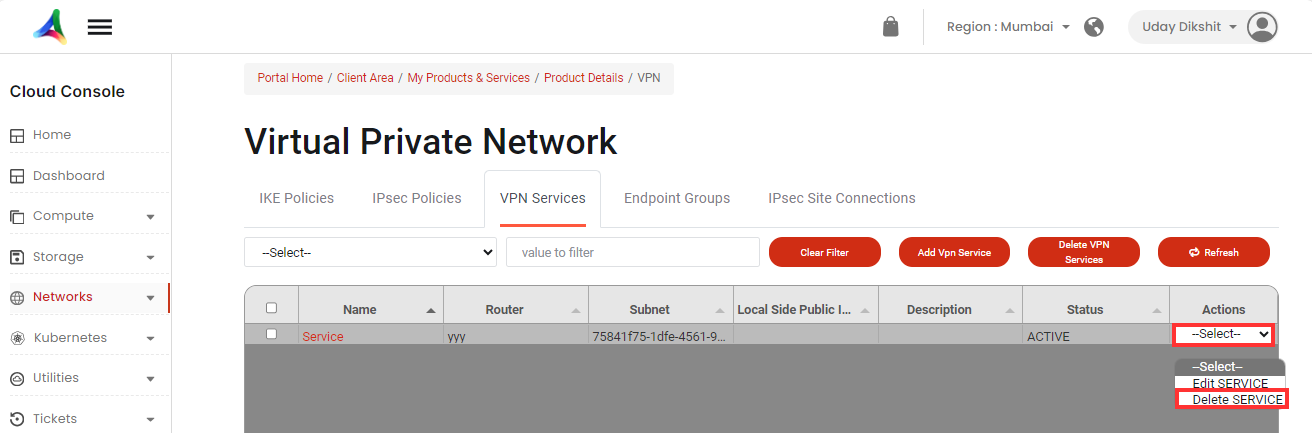
You can delete a VPN service by clicking on **Select** and then selecting **Delete** **Service** from the drop-down menu.

<figure><img src="https://2627469859-files.gitbook.io/~/files/v0/b/gitbook-x-prod.appspot.com/o/spaces%2F4xe4XNC0Kdt8dOCWNCOa%2Fuploads%2FojFmJAO9Po6Wz5JCjaEp%2Fimage.png?alt=media&#x26;token=344c5073-6127-49e5-8b1d-4625e1203b71" alt=""><figcaption></figcaption></figure>

### e. How do I view an overview of the VPN service?

To view an overview of the VPN service, follow the steps below:

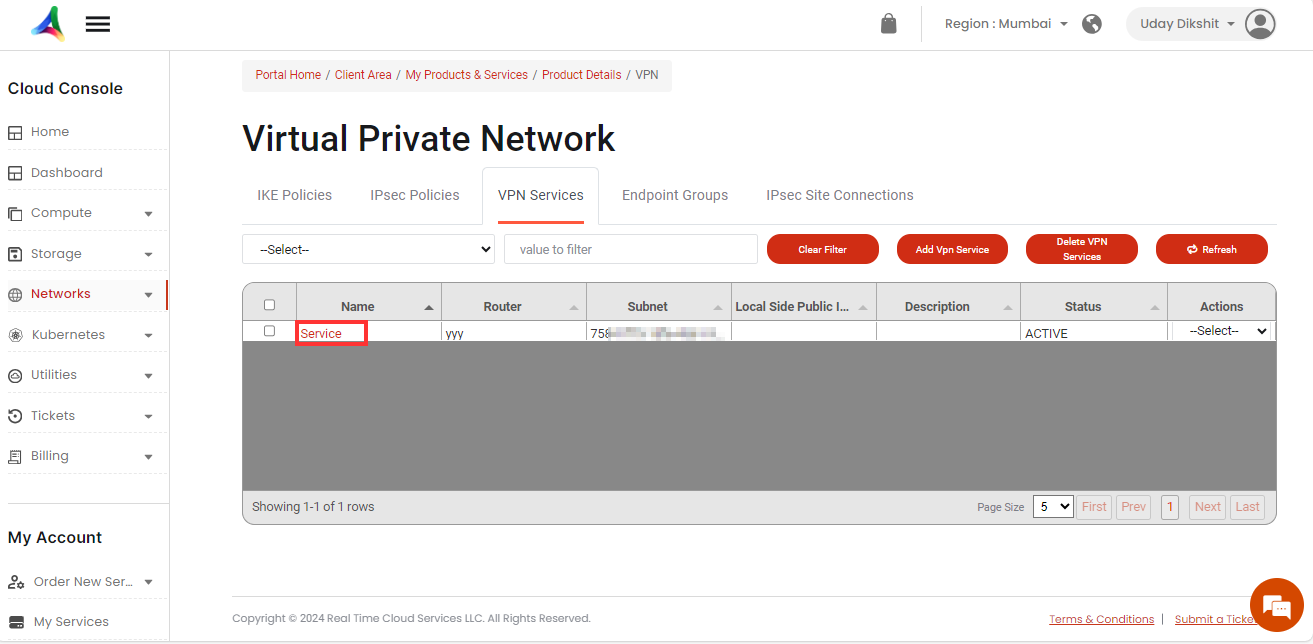
**Step 1:** Click on the VPN service name for which you want to view the overview.

<figure><img src="https://2627469859-files.gitbook.io/~/files/v0/b/gitbook-x-prod.appspot.com/o/spaces%2F4xe4XNC0Kdt8dOCWNCOa%2Fuploads%2FAoTO7OjjBiRS30OpP7PV%2Fimage.png?alt=media&#x26;token=ec2bb202-2659-4099-a9c6-6e61d422f1d3" alt=""><figcaption></figcaption></figure>

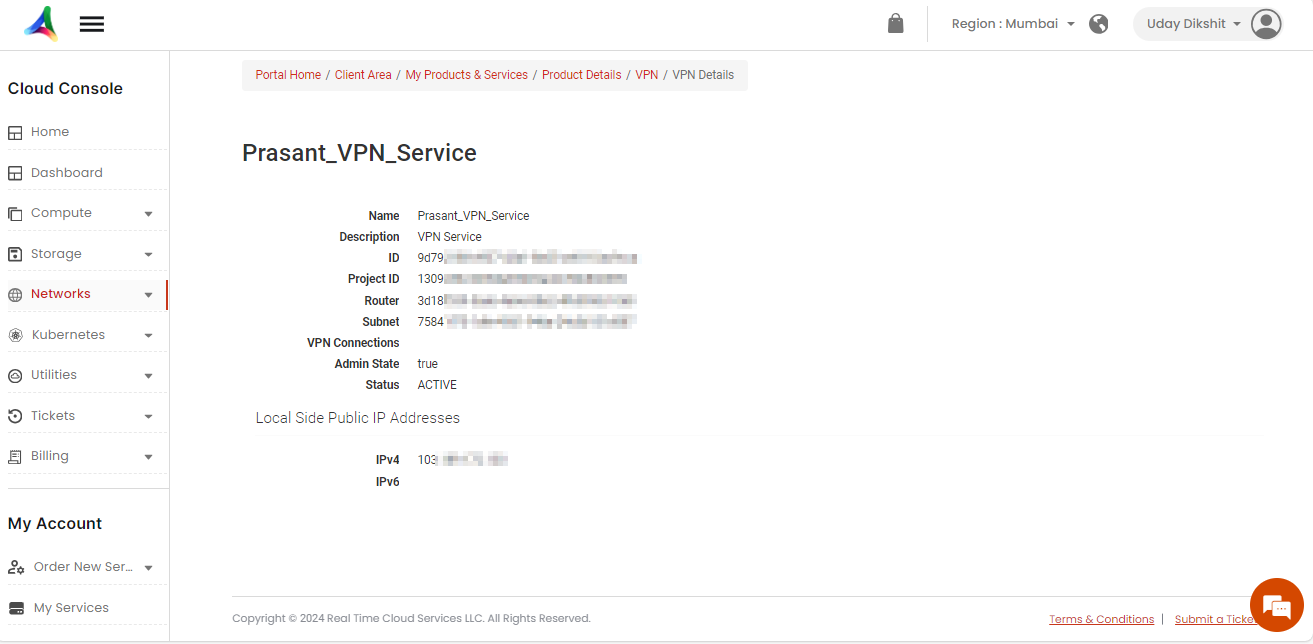
**Step 2:** Here, you can view the overview of the selected VPN service.
<figure><img src="https://2627469859-files.gitbook.io/~/files/v0/b/gitbook-x-prod.appspot.com/o/spaces%2F4xe4XNC0Kdt8dOCWNCOa%2Fuploads%2FfT9DRUheORHlk7T81HPz%2Fimage.png?alt=media&#x26;token=16117e43-7f87-4a2f-810e-a867c1ae1f85" alt=""><figcaption></figcaption></figure>