> For the complete documentation index, see [llms.txt](https://docs.acecloud.ai/knowledge-base/llms.txt). Markdown versions of documentation pages are available by appending `.md` to page URLs; this page is available as [Markdown](https://docs.acecloud.ai/knowledge-base/tutorials/how-to-install-pfsense-from-iso-on-acecloud.md).
# How to install pfSense from ISO on AceCloud?
This guide explains how to install pfSense firewall using an ISO image on the AceCloud infrastructure.
**Step 1:** **Download the pfSense ISO Image.**
* Visit the [official](https://www.pfsense.org/download/) pfSense download page.
* Select the **Installer**: CD Image (ISO)
* Click **Download**, and once completed, extract the compressed file (if zipped) to get the raw `.iso` image.
#### **Step 2: Upload the ISO to Ace Cloud**
1. Log in to the **AceCloud portal**.
2. Navigate to the **Storage** and choose **Images.**
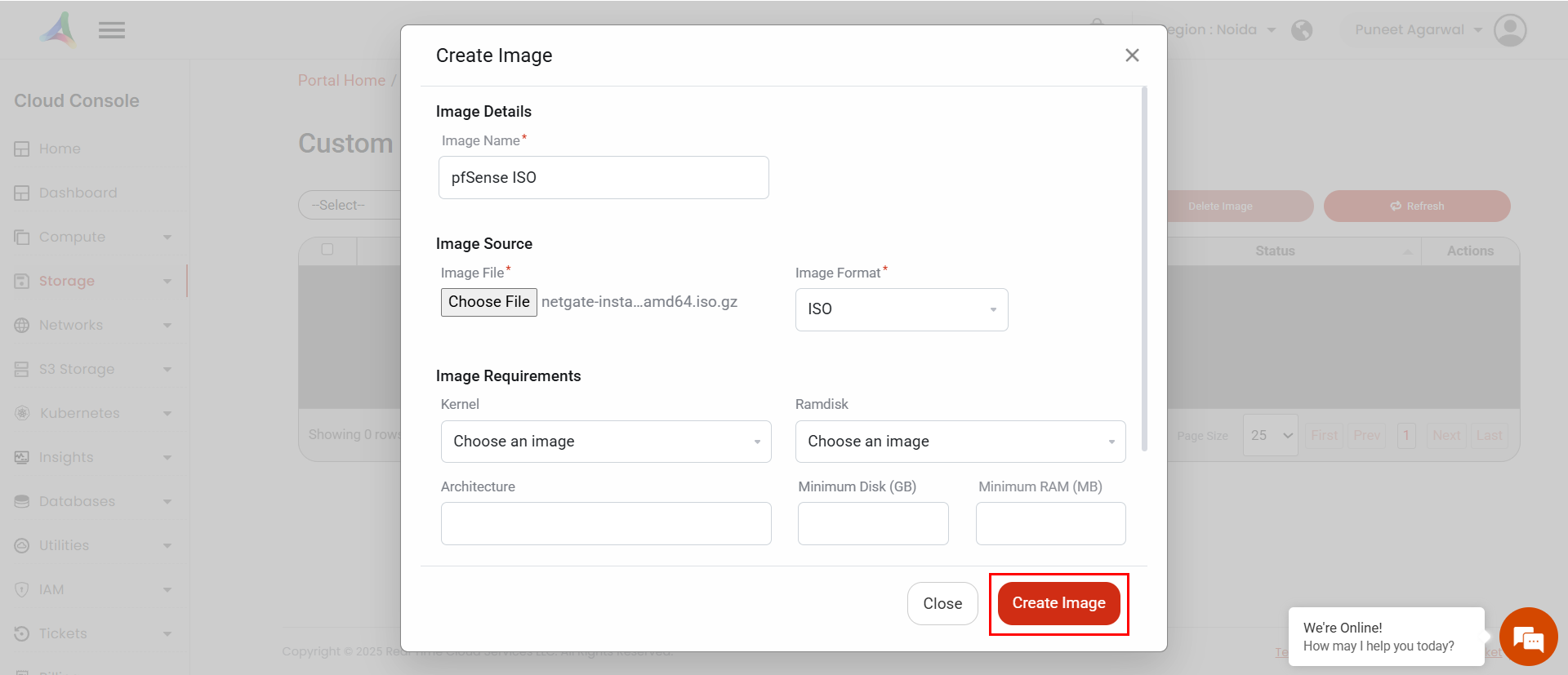
3. Click **Create Image** and provide:
* **Name**: pfSense ISO
* **Format**: ISO
* **Upload File**: Select the downloaded pfSense `.iso` file
Click **Create Image** to upload and register the ISO image.
#### **Step 3: Launch an Instance for pfSense Installation**
1. Navigate to **Compute,** then choose **Instances.**
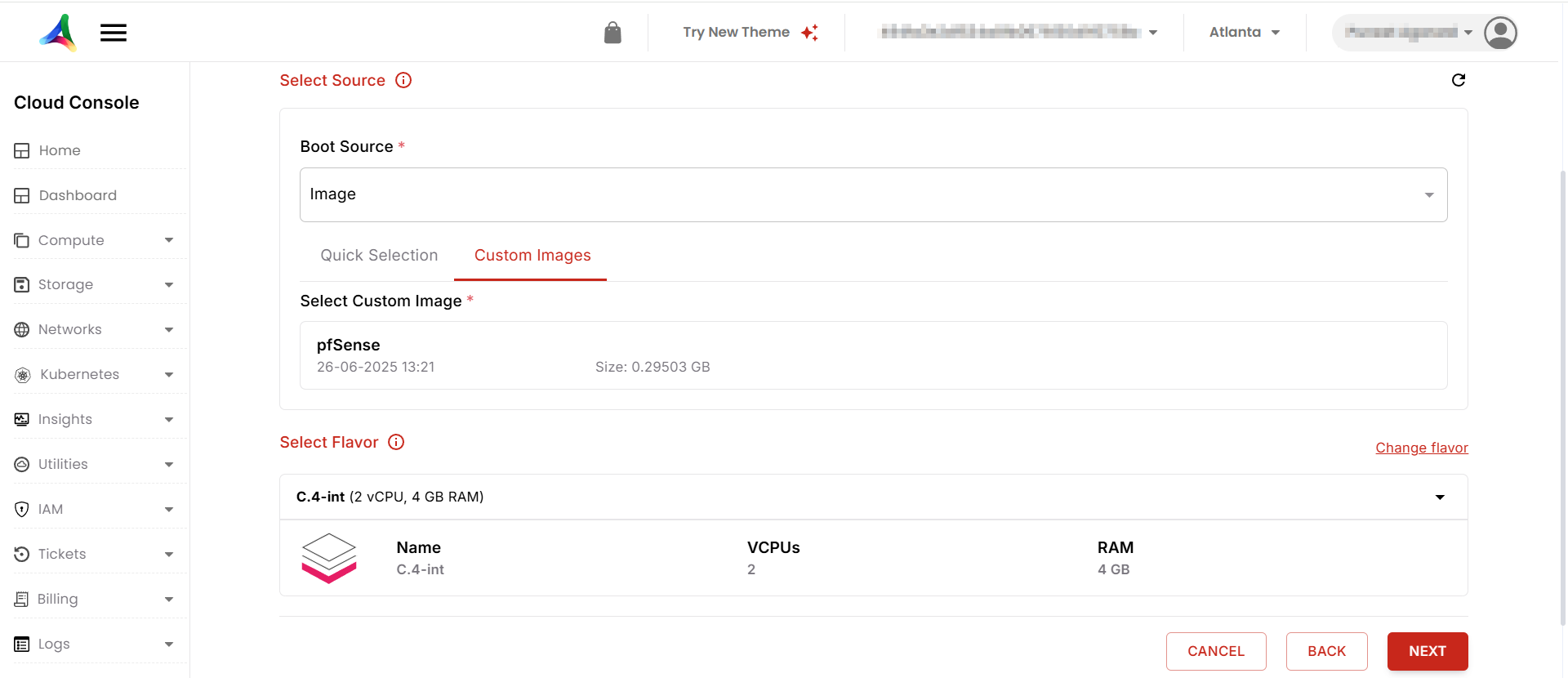
2. Click **Create Instance** and configure:
* **Name**: pfSense-Installer
* **Source**: Choose Image and from custom Images, use the uploaded **pfSense ISO** image
* **Flavor**: Choose a flavor with at least:
* 1 vCPU
* 1 GB RAM
* **Volumes**:
* Add a **new blank volume (≥ 50 GB)** for installation
* Set it as the **bootable disk** (if the option is present)
* **Networks**: Attach two interfaces:
* **WAN**: Public Network
* **LAN**: Private VPC or internal network
3. Launch the instance.